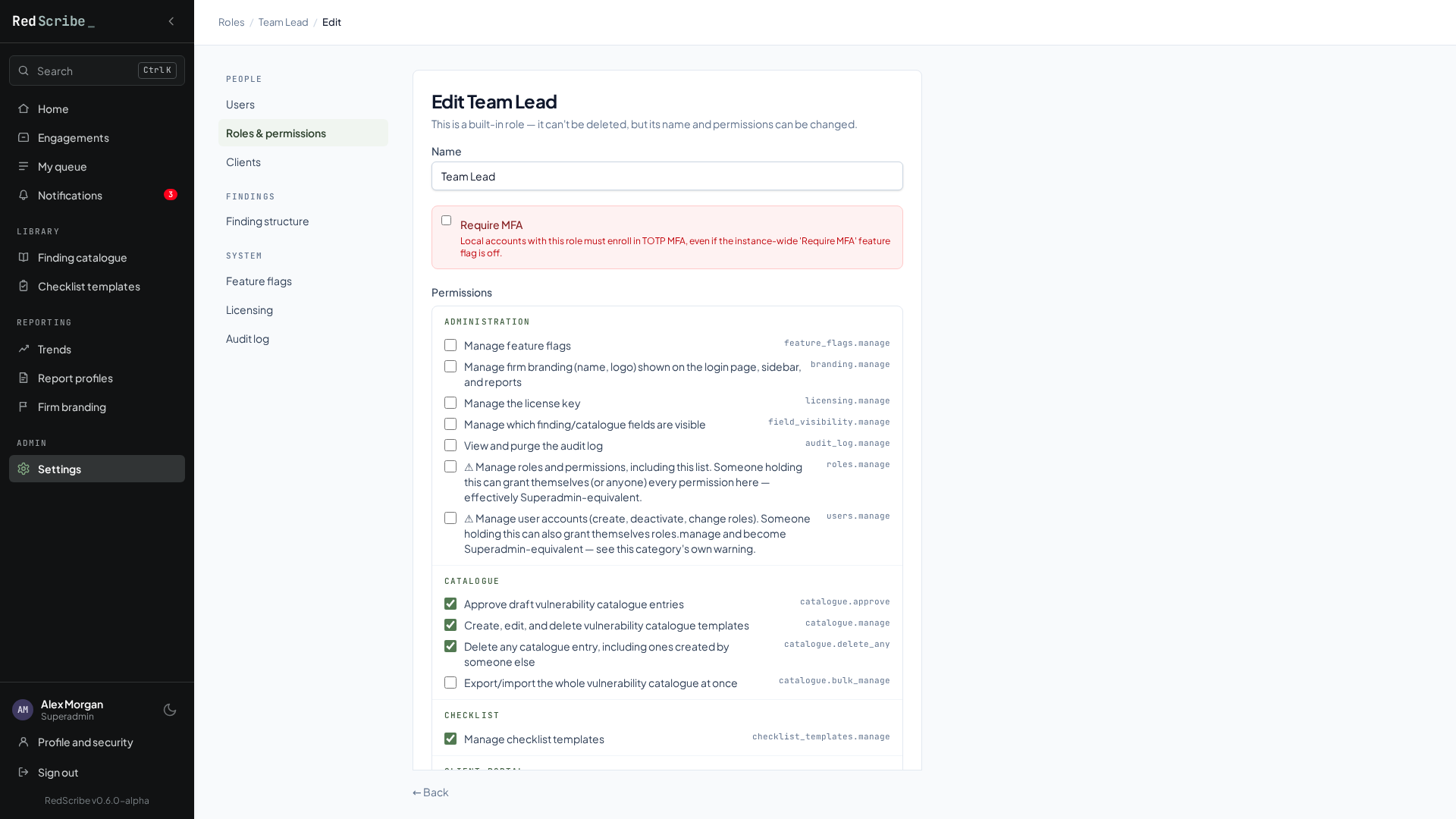
Roles & permissions
RedScribe's dynamic role/permission model, covering built-in roles, every available permission, and how to build a custom role safely.
Every staff account has exactly one role, and that role decides everything they can see and do. This page explains how roles work and how to build your own safely. For the actual list of permissions to check off while you’re configuring one, see the Permissions reference.
Roles are dynamic, not fixed
Section titled “Roles are dynamic, not fixed”A role is just a name attached to a set of permissions. RedScribe ships with four built-in roles that cover common team setups, but none of them are locked in place:
- You can edit the permission set on any built-in role except Superadmin.
- You can create entirely new roles from scratch, with whatever combination of permissions actually matches how your team works.
- Managing roles needs its own permission, so it’s something you grant deliberately, not something every admin screen assumes.
Think of the built-in roles as sensible starting points, not a hierarchy you’re locked into.
The built-in roles
Section titled “The built-in roles”| Role | What it’s built for |
|---|---|
| Superadmin | Full control over everything, always. Not editable, and always requires MFA no matter what your instance-wide MFA setting says. |
| Team Lead | Running engagements day to day: creating them, managing membership and scope, releasing findings to clients, reviewing and QA’ing findings, and managing the catalogue, checklists, and client accounts. |
| Senior | Reviewing and QA’ing findings, and approving catalogue entries, without the broader engagement and client management a Team Lead has. |
| Consultant | No standing permissions by default. A consultant’s day to day access comes from being added to specific engagements, not from the role itself. |
The exact permissions behind each of these are listed in the Permissions reference, grouped by role so you can see at a glance what each one starts with.
Every permission
Section titled “Every permission”Permissions are grouped into categories, roughly matching the areas of the app they govern: engagements, the finding catalogue, checklists, reports, finding review, client portal access, and instance administration. A role’s access is just the sum of whichever permissions it holds, nothing more.
Two of these deserve a closer look before you hand them out, because they’re broader than they might sound.
Reviewing your own work vs. covering for someone else
Section titled “Reviewing your own work vs. covering for someone else”By default, RedScribe keeps review and QA independent of authorship: whoever wrote a finding is left out of the reviewers and QA eligible for it and can’t sign off their own work. Two permissions relax that, for two different reasons:
- Letting someone review or QA a finding they wrote themselves. This lifts the independence block for that person, and matters most on a small team, where requiring a second, completely separate person for every single finding just isn’t practical. It’s a separate grant for review and for QA, so you can allow one without the other.
- Letting someone act on any finding’s review or QA decision, regardless of who it’s actually assigned to. This is meant for a Team Lead covering for a reviewer who’s out sick or on leave, not for everyday use, since it bypasses the assignment entirely.
These are separate grants, and holding one doesn’t imply the other. Give each to whoever actually has that specific problem, and see the Permissions reference for their exact names.
The two permissions that are Superadmin in disguise
Section titled “The two permissions that are Superadmin in disguise”Requiring MFA per role
Section titled “Requiring MFA per role”Beyond the instance-wide “require MFA” setting (see Feature flags), you can also require multi-factor authentication on a specific role directly. That’s useful if you want MFA mandatory for, say, anyone with Team Lead access, even on an instance where it isn’t required for everyone. Superadmin requires it unconditionally either way, and that one can’t be turned off.
Building a custom role
Section titled “Building a custom role”Create a new role from the roles screen, give it a name, and pick whichever permissions it needs from the same categorized list. There’s no restriction on the combination, so it’s worth sanity checking a new role against what it’s actually meant to do before handing it to someone, especially anything touching user management, roles, or finding review across the whole instance.
Roles are managed under Settings → Roles & permissions. In the role editor, permissions are grouped by area (administration, catalogue, checklists, and so on), and each one shows its internal name on the right, which is what the Permissions reference lists.