Logging in & MFA
Logging into RedScribe, enrolling in TOTP MFA, and account recovery basics.
Everyone, whether you work at the firm or you’re a client, signs in through the same login page and the same two-factor process. Here’s what to expect.
Logging in
Section titled “Logging in”Staff and client portal users log in at the same place. RedScribe figures out which kind of account you have after you authenticate, not from a separate URL.

The username and password form is always there, along with a “Forgot your password?” link. If your instance has single sign-on set up, a “Sign in with Google” or “Sign in with Microsoft” button appears underneath as an extra option. That only works for accounts in your firm’s approved email domain, and only for accounts an administrator has already created for you. It isn’t self-service signup.
Setting up multi-factor authentication
Section titled “Setting up multi-factor authentication”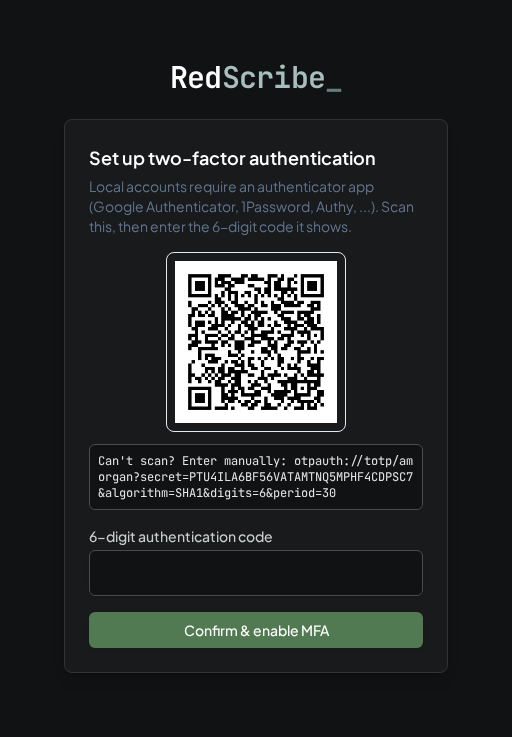
By default, every local account (not signing in through Google or Microsoft) is required to enroll in TOTP based multi-factor authentication, on your very first login:
- Scan the QR code on screen with an authenticator app (Google Authenticator, 1Password, Authy, or similar).
- Enter the 6-digit code the app generates to confirm enrollment.
From then on, every login asks for your password followed by a current code from your authenticator app.
How sessions behave
Section titled “How sessions behave”- Idle timeout. You’re signed out automatically after a period with no activity, 30 minutes by default. Your session also has a fixed outer limit of 4 hours regardless of activity.
- One session at a time. Logging in from a new device or browser signs you out everywhere else. That switch happens only once your new session has actually cleared MFA, so a login attempt that hasn’t finished multi-factor yet doesn’t kick out your existing session.
- Lockout after failed attempts. Five wrong password attempts in a row locks the account for 24 hours by default. Every administrator gets an email alert the moment this happens, not just a quiet log entry.
Forgotten password
Section titled “Forgotten password”Use Forgot password? on the login page and you’ll get a single-use, time-limited reset link by email (an hour, by default). New accounts, staff and client portal alike, work the same way in reverse: you get a single-use link that’s valid for 24 hours, letting you choose your own password. An administrator never sets or sees it.