Finding catalogue
The catalogue's draft, pending QA, and approved workflow, including how the approval snapshot and JSON import/export work.
The catalogue is a shared library of pre-written finding templates your whole team draws from, so common findings don’t get rewritten from scratch on every engagement.
Who can do what
Section titled “Who can do what”Anyone signed in can create a draft catalogue entry, and anyone can edit or delete an entry they created themselves with no special permission at all, the same way you can always edit your own draft. Touching someone else’s entry is where permissions come in: some let you edit or delete any entry, others let you approve entries or move them through QA, and one unlocks whole-catalogue export and import. See the Permissions reference for the exact list if you’re setting up roles.
The workflow
Section titled “The workflow”Draft ──submit for QA──▶ Pending QA ──approve──▶ Approved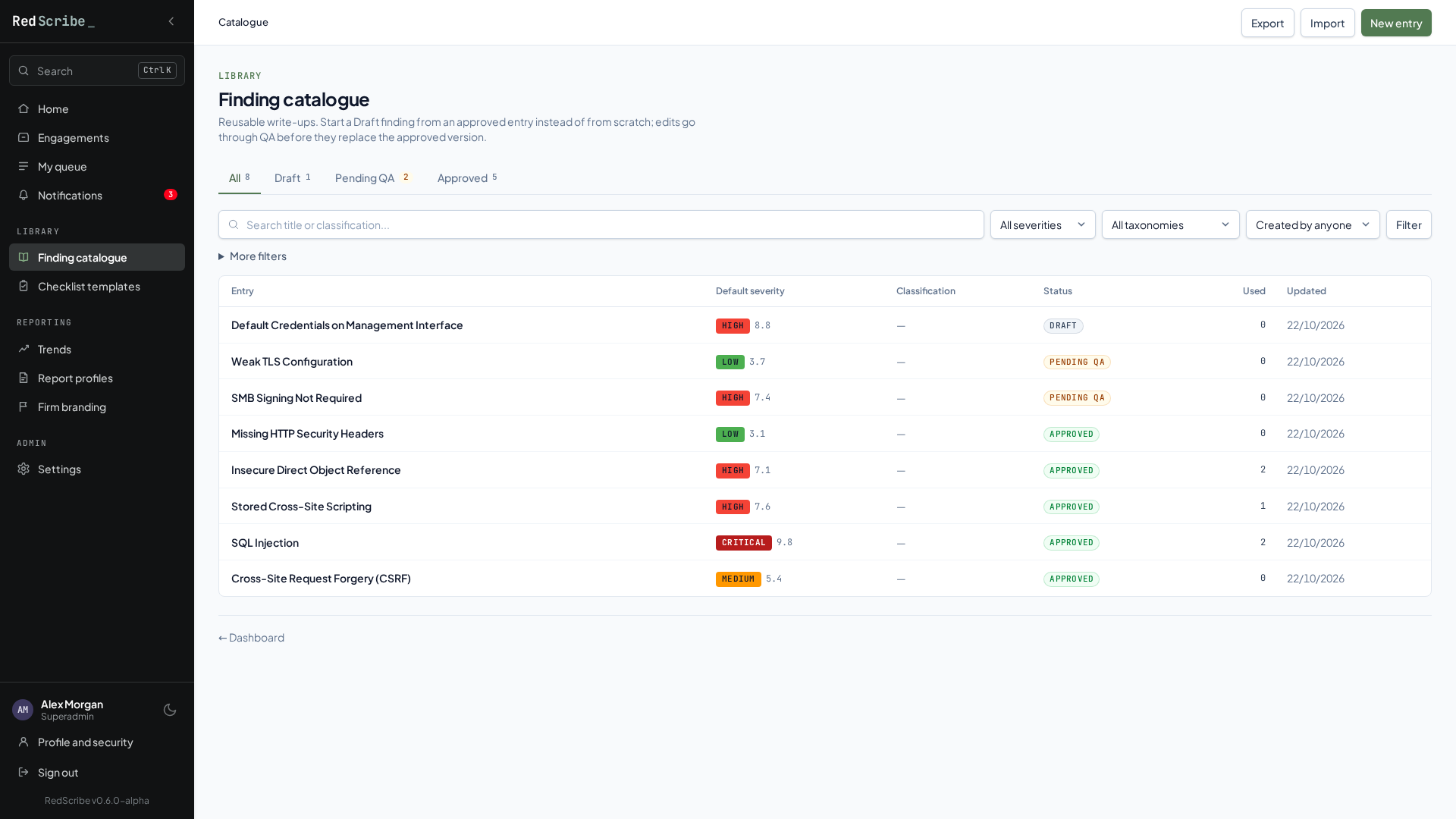
Library → Finding catalogue lists every entry, with tabs for each status and how many entries are in it, plus filters for severity, taxonomy, author, and date. The Used column counts the findings that were started from each entry.
Only an entry that’s currently Approved, or one that used to be approved and still has that approved version on file, can be imported into a finding. See Creating a finding.
What a catalogue entry stores
Section titled “What a catalogue entry stores”A title, a default severity, an optional default CVSS score and vector, any classification tags (optional), and a block of rich text for each active content section your instance uses (description, business impact, and so on). There’s no separate “notes” or “author” field beyond that. Whoever created the entry is tracked for permission purposes, but it isn’t shown as a byline anywhere.
An entry’s page
Section titled “An entry’s page”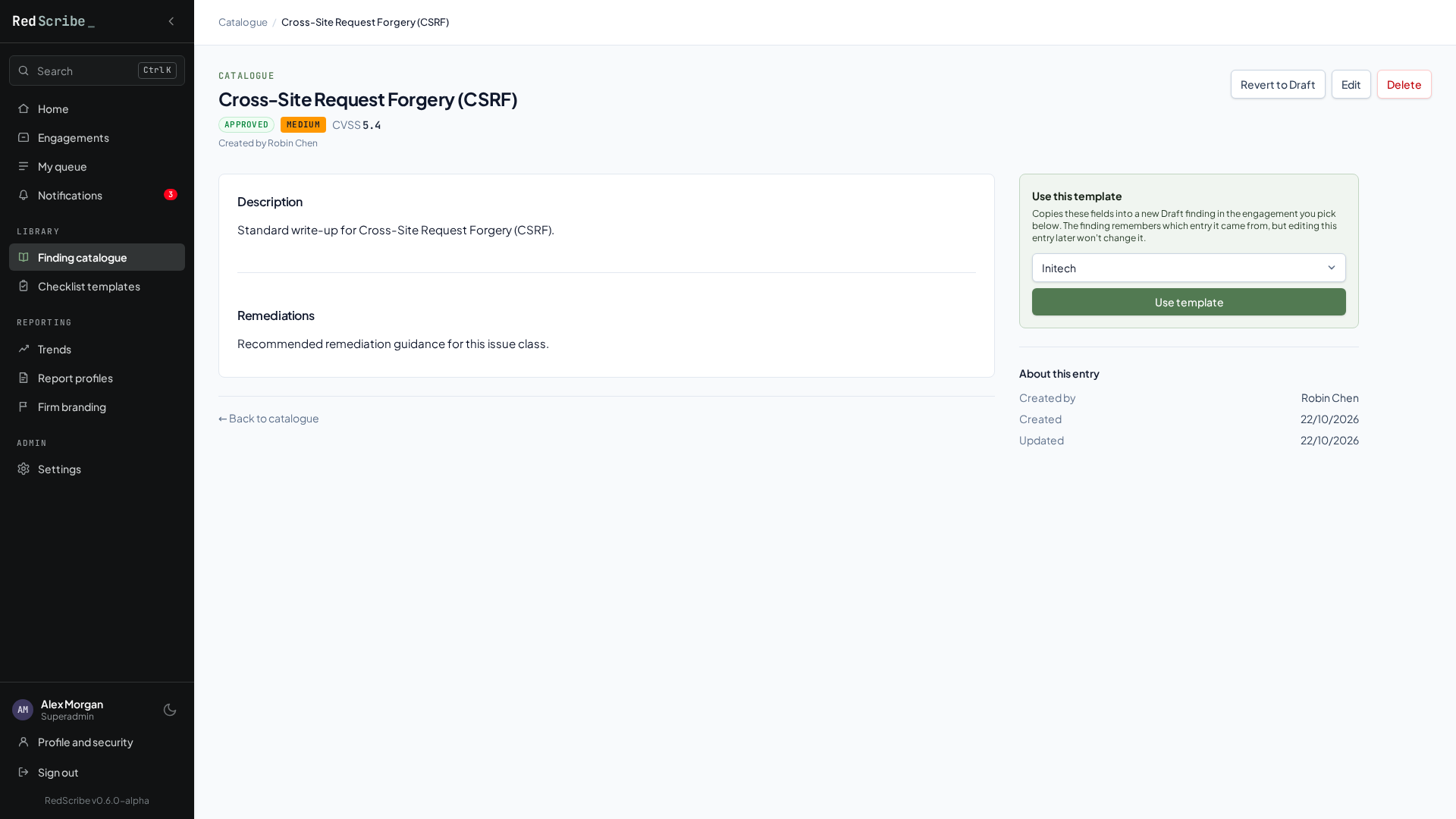
An entry’s page shows its content and, if it can be used, a Use this template panel: pick an engagement and select Use template to start a new Draft finding from it.
When an entry has edits waiting for QA, its page says so and highlights which fields and sections changed since the approved version. Switch between Pending changes and Approved version (in use) to compare them; the approved version is what findings currently get. The changed fields are listed with the approved value struck through.
Editing an entry that isn’t a fresh draft
Section titled “Editing an entry that isn’t a fresh draft”Saving an edit to an entry that’s Pending QA or Approved resets it straight back to Draft, every time, and tells you so. This applies even to a small wording fix; there’s no “minor edit” exception. If you edit an Approved entry, it drops all the way to Draft rather than back to Pending QA, so it has to go through the full submit-for-QA step again before it can be re-approved.
How the approval snapshot works
Section titled “How the approval snapshot works”Approving an entry doesn’t just flip a status label. It also saves a complete, frozen copy of the entry, title, severity, CVSS fields, classifications, and every section’s content, in a separate record. That snapshot, not whatever the entry currently looks like, is what actually gets pulled in when someone imports it into a finding. Re-approving replaces the snapshot; it isn’t versioned history.
That separation is what makes the catalogue safe to edit while other people are using it. The moment you start editing an Approved entry, its status drops to Draft, but the snapshot from its last approval stays exactly as it was. Anyone importing from that entry in the meantime still gets the vetted, approved content, not your unfinished edit, right up until someone approves the new version.
Explicitly reverting an entry from Approved back to Draft (rather than just editing it) is different: it also deletes the snapshot outright, which immediately makes the entry un-importable until it’s approved again. So if a catalogue entry shows as importable while its status reads Draft or Pending QA, that’s expected: you’re looking at the in-progress content, but importing would still pull the last approved version instead.
Import and export
Section titled “Import and export”Export produces a single JSON file with one entry per catalogue template, including title, severity, CVSS fields, classification tags, and each content section’s rich text. It’s meant for moving a catalogue between RedScribe instances or keeping an external backup, not as something you’d hand-edit day to day.
Import (from the catalogue’s top bar) shows what the file would create before anything is saved: one row per entry with its title, default severity, how many sections it has, and its first classifications. An entry whose title matches one already in the catalogue (ignoring case) is flagged Title already in the catalogue and starts unticked. Untick anything you don’t want, then select Import N selected.
Importing checks every entry before creating anything: a title is required, severity has to be one of RedScribe’s real severity values, any CVSS vector has to parse correctly, and every classification needs both a taxonomy and a value. A single bad entry anywhere in the file rejects the whole import, naming which entry and field failed, so nothing partial gets created.
Sections are matched by their internal name (slug), not their label. Content for a section your instance doesn’t have is skipped, and content for a retired section is imported but stays hidden until the section is turned back on. The preview lists both above the entries, with how many entries each affects, so you can add or re-activate sections in Finding structure before importing. Every imported entry lands as a fresh Draft regardless of whether the export captured it as Approved, so imported content always goes through your instance’s own review process from scratch.