Home & navigation
Orienting yourself in the RedScribe UI after signing in.
Home is the first page you see after signing in. It’s built around what needs you today rather than being a generic overview. This page covers what’s on it and how the sidebar is organized.
What’s on Home
Section titled “What’s on Home”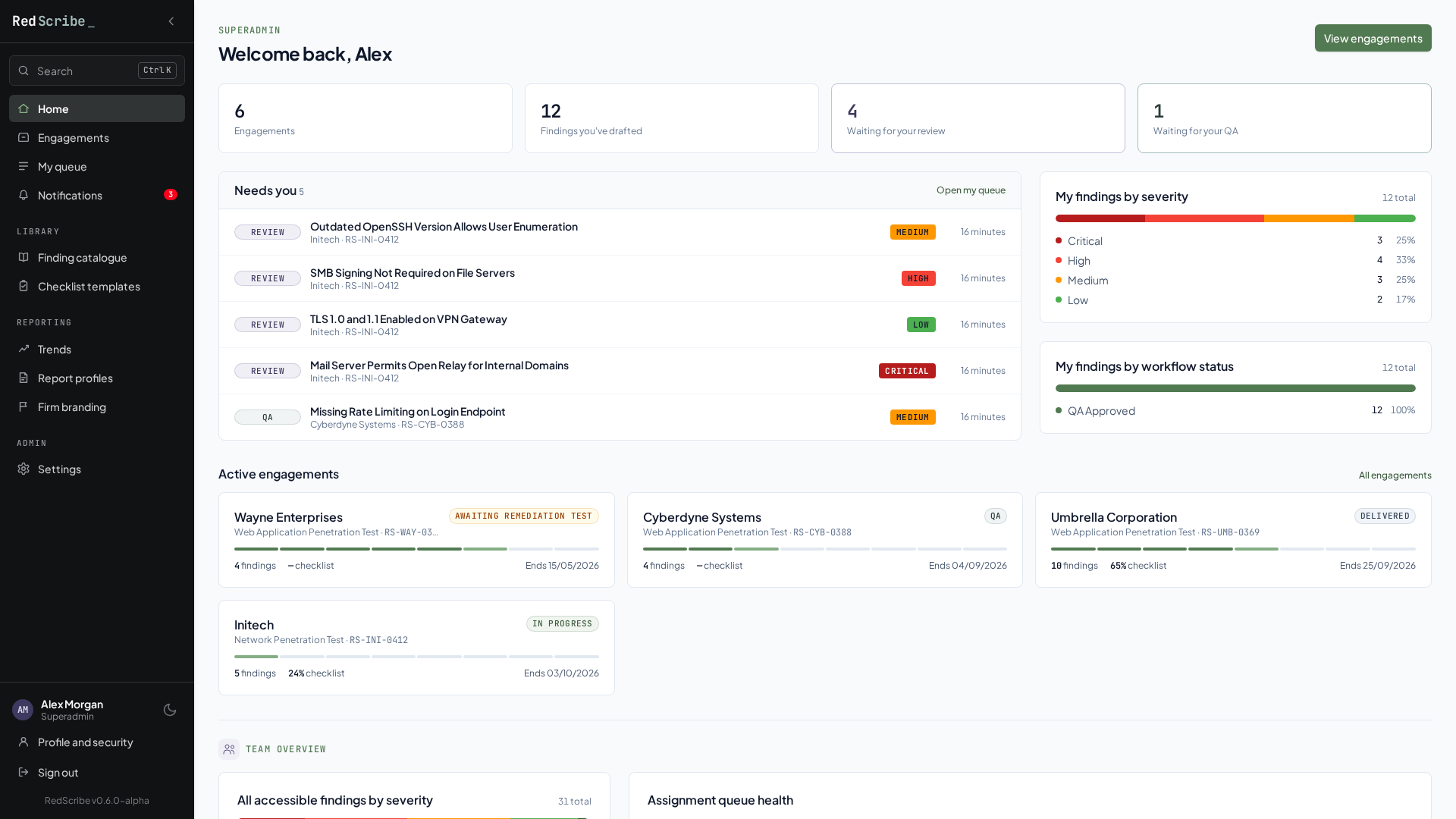
What you see depends on your role, but it generally includes:
- Counts for the engagements you can access, the findings you’ve drafted, and the findings waiting for your review and your QA. Each count links to the matching list.
- Needs you: one list of everything waiting on you, combining findings to review, findings to QA, and your own findings that came back with changes requested. It’s the same work as My queue, newest first.
- Your findings by severity and by workflow stage.
- Active engagements: a card per engagement that isn’t closed, showing its stage, open findings, checklist coverage, and end date.
- Team overview (team leads and Superadmins): findings by severity across every engagement you can see, plus drafts with no reviewer and reviewed findings with no QA.
The sidebar
Section titled “The sidebar”The sidebar is your main way of getting around:
- Search at the top (if global search is turned on).
- Home, Engagements, My queue, and Notifications.
- Library: the Finding catalogue and Checklist templates.
- Reporting: Trends, Report profiles, and Firm branding.
- Admin: one Settings entry. It opens a settings area with its own menu for users, roles, clients, finding structure, feature flags, licensing, and the audit log.
- At the bottom: your name, the theme toggle, Profile and security, and Sign out.
What appears depends on your role and permissions, so a missing entry usually just means you haven’t been given access to it. See Roles & permissions for what each permission unlocks, and the Permissions reference for the full list.
Collapsing the sidebar
Section titled “Collapsing the sidebar”The arrow at the top of the sidebar collapses it to a narrow strip of icons; hover an icon to see its name. Pressing [ does the same.
The checklist item page and the report builder start with the sidebar collapsed, to give the work more room. If you expand it on one of those pages, it stays expanded on those pages. Other pages keep their own setting.
A light and dark toggle sits next to your name at the bottom of the sidebar, and also floats on the sign-in and setup screens. It’s a per-browser preference, not tied to your account, so it won’t follow you to a different computer.
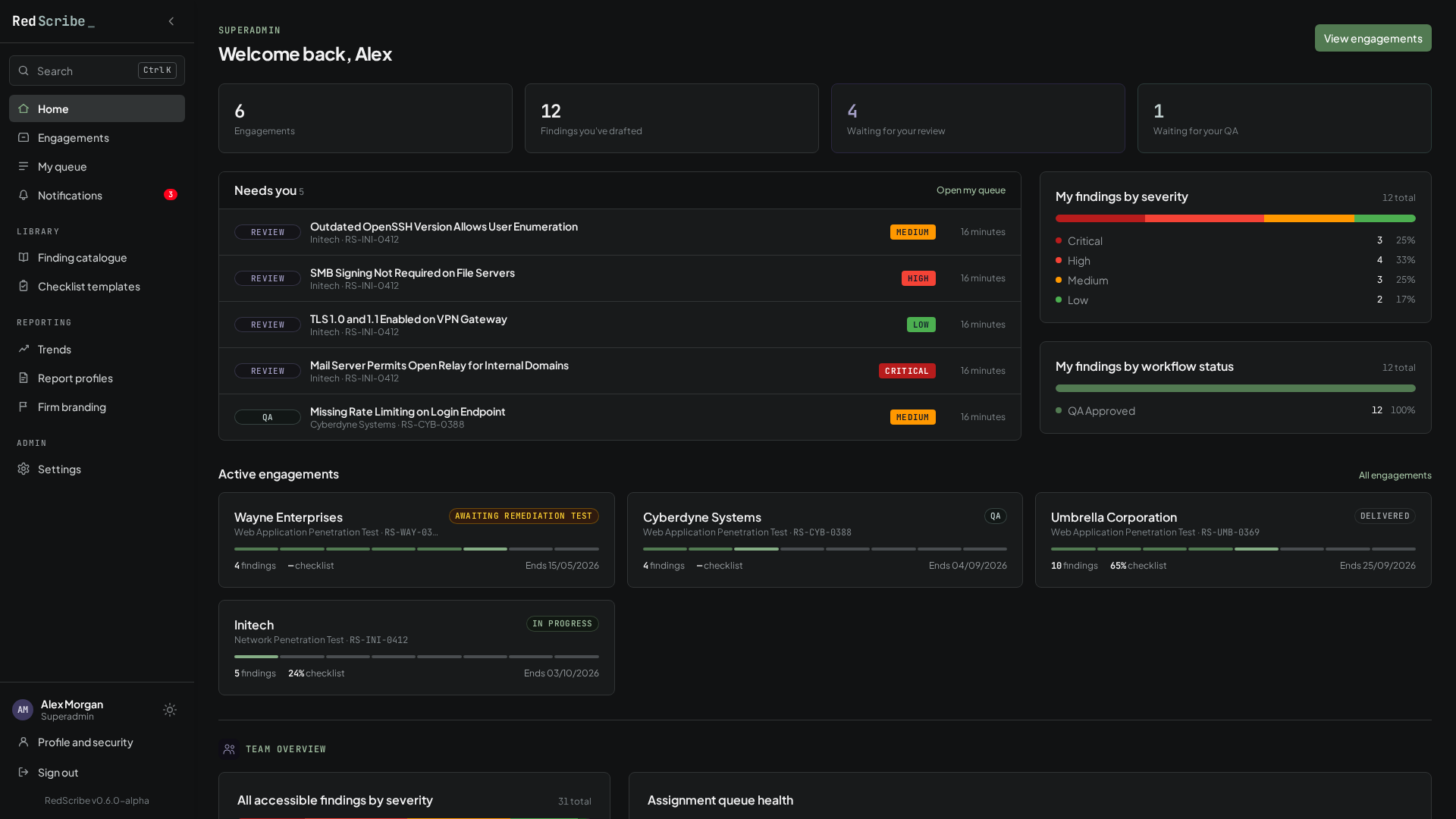
Keyboard shortcuts
Section titled “Keyboard shortcuts”Press ? on any page to see the shortcuts that page offers.
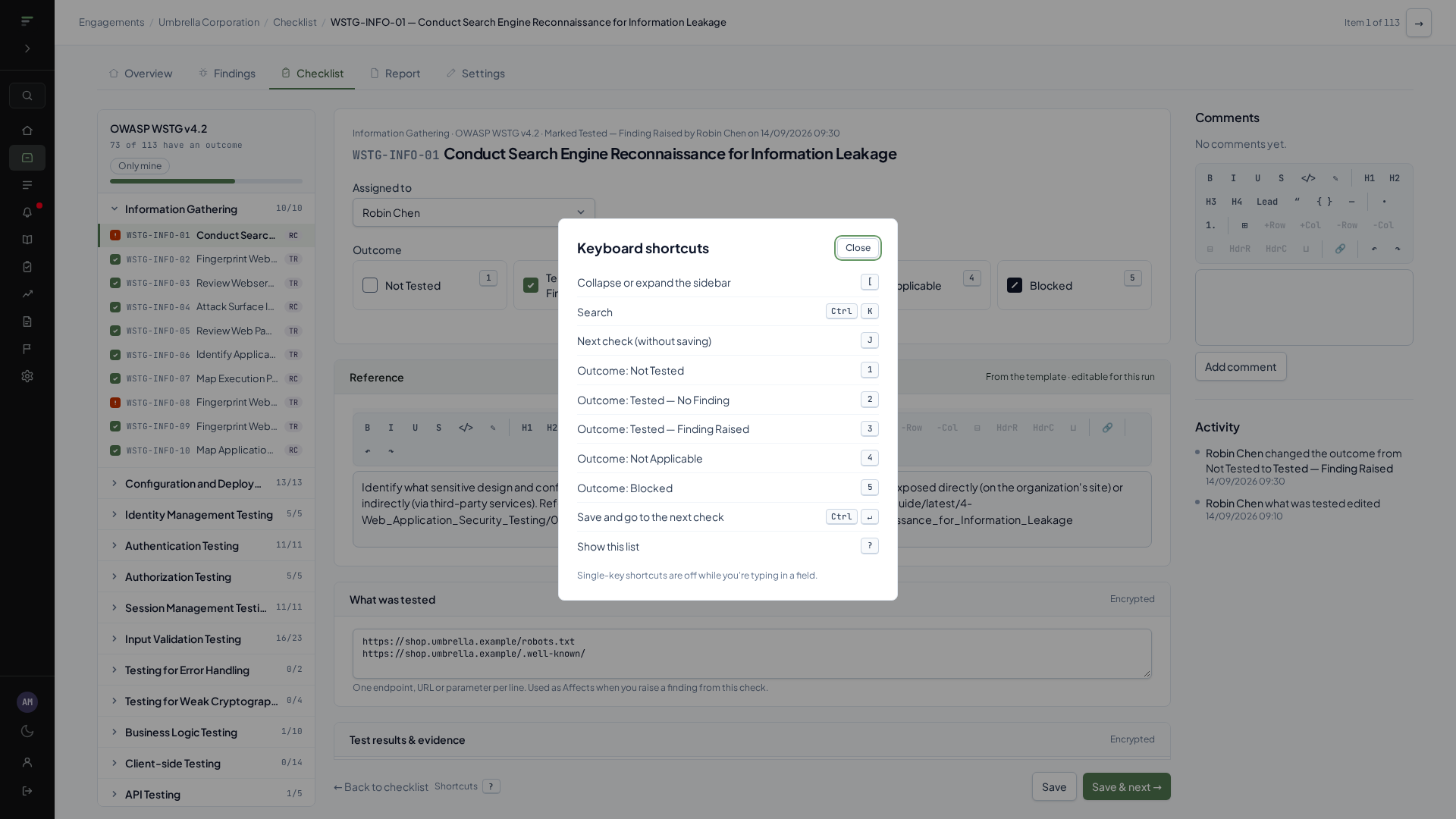
| Key | Does |
|---|---|
| Ctrl K (⌘ K on a Mac) | Open Search |
| [ | Collapse or expand the sidebar |
| ? | Show the shortcuts for this page |
The checklist item page adds its own keys for outcomes and moving between checks. Single-key shortcuts are ignored while you’re typing in a field; the Ctrl/⌘ ones work everywhere.
Notifications
Section titled “Notifications”Notifications in the sidebar shows a count of unread in-app notifications: review and QA assignments, review and QA outcomes, scope change decisions, and new account setup links. See Notifications & profile for the full list.