Managing client access
Creating client companies and accounts, what each admin action does, and the instance-wide toggle that turns portal access on or off.
This page is for staff managing client-facing access. See For clients for what the client themselves sees.
Client companies
Section titled “Client companies”A client company groups engagements under one customer organization. Managing them needs its own permission; see the Permissions reference if you’re setting up roles.
Client companies are managed under Settings → Clients.
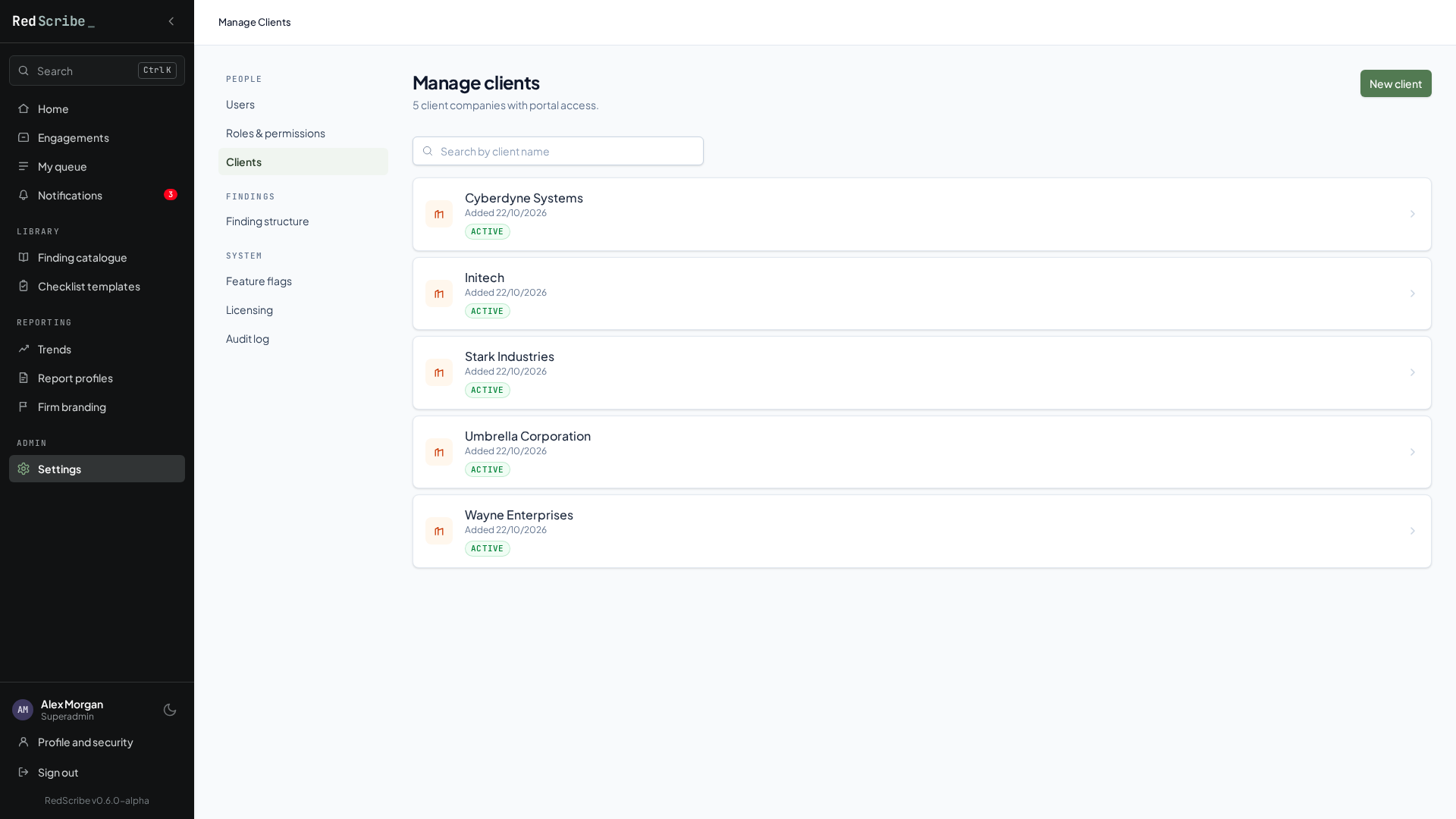
The client list supports a free text search over company name, and paginates ten companies per page.
Creating a client company only asks for a name, which has to be unique across the instance. Editing one adds a second field: whether it’s active.
What deactivating a client company actually does
Section titled “What deactivating a client company actually does”Turning a company’s active flag off does two things. It removes every one of that company’s engagements from what the portal will show, since the portal only ever lists engagements belonging to a client that’s both linked and currently active. It also deactivates every active client user tied to that company and signs each of them out on the spot, so nobody keeps a live session into a company you’ve just taken offline. The engagements themselves aren’t touched, only their portal visibility.
Reactivating the company brings its engagements back into the portal, but it deliberately does not reactivate those user accounts: that’s a one-way cascade, so someone who has left the client can’t quietly regain access when the company comes back. Reactivate each account you still want by hand from the list below. A company’s detail page shows its engagements and every client portal account tied to it, so you can see who would be affected before you deactivate it.
Client accounts
Section titled “Client accounts”From a client company’s detail page:
- New client user creates a login scoped to that one company. You’ll fill in username, email, first name, last name, and which client company the account belongs to (defaulted to the company you started from, but changeable). The account is created with a locked password and the built-in client role, and the same single-use, 24-hour emailed setup link used for staff accounts is sent immediately. See User management for more on how that setup flow works.
- Deactivate does two things at once: it flags the account inactive, and it immediately signs the account out everywhere, rather than waiting for their session to expire naturally. Reactivate only flips the flag back; it doesn’t need to touch sessions, since a deactivated account couldn’t have started a new one in the meantime.
- Send password reset sends the same emailed reset link a self-service “Forgot password” would, on the admin’s behalf. This only works for accounts that sign in with a password. An account provisioned through single sign-on has no RedScribe-managed password to reset.
- Clear MFA removes the account’s authenticator enrollment, forcing re-enrollment at next login. If the account never enrolled in the first place, you’ll see a message saying there was nothing to clear rather than a silent no-op. Like the password reset action, this only applies to accounts that sign in with a password. See the equivalent staff-side action in User management for the same idea applied to a staff account.
Erasing a client user
Section titled “Erasing a client user”Erasing is a last resort, the same as it is for staff accounts, and works the same way. Deactivating already removes a client user’s access while keeping their name on anything they viewed or acknowledged; erase only when the personal data itself has to go, such as a data-subject erasure request.
A client user has to be deactivated before it can be erased, and you can’t erase your own account. Erase then strips the name, email, password, and sign-in history and leaves an anonymous “Erased user” tombstone so the record stays intact. To confirm, you type the account’s exact username into the confirmation field — there’s no second approver. It’s irreversible, the account can never be reactivated, and the action is recorded in the audit log.
Erasing a client user needs the dedicated erase-client-user permission, which no built-in role holds by default — it sits with Superadmin unless you grant it explicitly. Managing client accounts in every other way (create, deactivate, reset) only needs the ordinary client-management permission a Team Lead already has.
Turning portal access on or off instance-wide
Section titled “Turning portal access on or off instance-wide”A single instance-wide switch turns the whole client portal on or off, gated by its own permission (a Superadmin has it by default; see the Permissions reference if you want to grant it elsewhere). When it’s off, client accounts can’t log in at all, regardless of individual account status, company status, or anything else. Managing client companies and accounts stays available either way, so you can fully prepare a client’s access before ever flipping this on. See Feature flags.