Reports & exports
Generating and exporting a report in Word, PDF, HTML, or Markdown, and how per-engagement report configuration works.
Every export format comes from the same underlying report content, so what you see in the live preview is exactly what ends up in your PDF, Word document, HTML file, or Markdown export: cover, document control, amendment history, disclaimers, table of contents, every body section, and back matter.
See the Sample report for a full example PDF and the exact profile configuration that produced it.
Report Profiles
Section titled “Report Profiles”A Report Profile bundles everything about how a report looks and what it contains by default: its layout, an optional Word template, its own text blocks, and its appearance settings. Setting one up is covered on its own page, Report profiles. This page is about generating and exporting a report once a profile already exists.
A profile with no Word template uploaded simply doesn’t offer a Word export option. Nothing breaks.
Generating a report
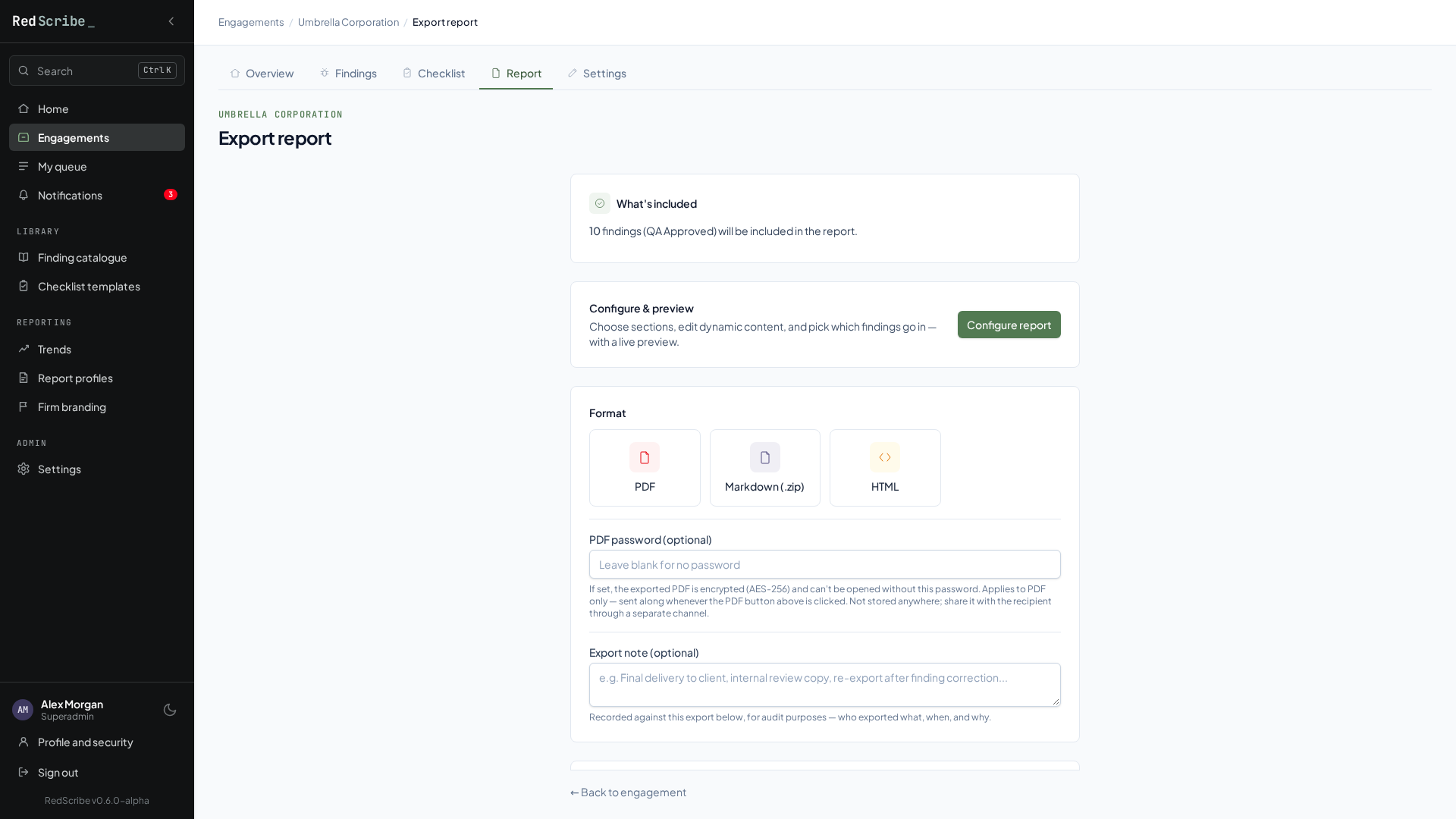
Section titled “Generating a report”From an engagement, open Report.
-
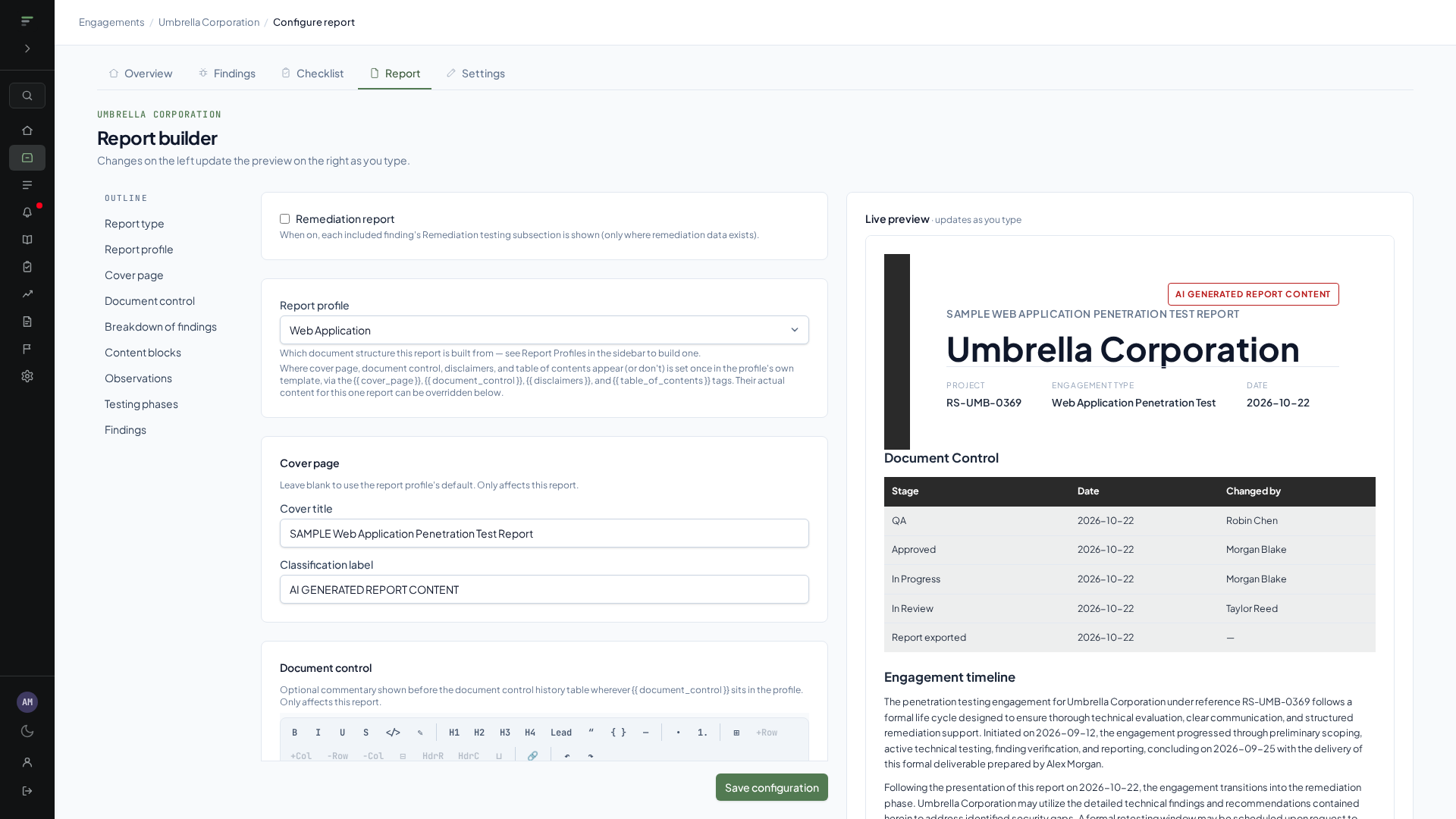
Configure the report. Pick a Report Profile, and set any per-engagement overrides: which observations and testing phases to include, and any text block content that doesn’t fit this particular report.
-
Preview the report. This is a live render of the same content export uses, so what you see is what you get.
-
Export, choosing a format.
Format What it is Markdown A .zipof Markdown files, one per sectionHTML A single self-contained HTML file PDF Rendered directly by RedScribe, with an optional password to encrypt the output Word (.docx) Fills in the profile’s uploaded Word template, only offered if one is uploaded
PDF password protection
Section titled “PDF password protection”Set a password when exporting to PDF and the generated file is encrypted with it, so recipients need the password to open it. Word export doesn’t have an equivalent yet.
Page breaks
Section titled “Page breaks”PDF export only starts a new page when one of these applies, nothing else does, regardless of how much content a section happens to hold:
- The table of contents always starts on its own page.
- Start each finding on a new page, a toggle on the report’s Configure page, if turned on.
- An explicit page-break marker placed at that exact spot in a Report Profile’s template editor.
Section headings and lists never force a page break on their own. A heading can end up as the last line on a page, with its content continuing on the next one, rather than the whole section being pushed down to keep them together.
Export concurrency
Section titled “Export concurrency”Report generation goes through a shared limit on how many exports can run at once instance wide, which protects everyone’s ordinary browsing from being slowed down by a heavy PDF or Word export running in the background. If every slot is busy, your export simply waits its turn rather than piling on top of an already-loaded server. See Requirements & sizing for how this scales with instance size.
Hidden fields are hidden everywhere
Section titled “Hidden fields are hidden everywhere”Any content section your administrator has hidden through Finding structure is left out of every exported format, not just the app’s own screens. There’s no separate case where it quietly still shows up in a PDF.
A note on Word export
Section titled “A note on Word export”Word export is meant as a strong starting point for the deliverable, not a guaranteed camera-ready final document. Firms vary widely in reporting conventions, and not every house style is something a general purpose template engine can fully anticipate. The expected workflow is to export the .docx, apply any final firm-specific touches by hand, then deliver. For most findings and observations, a Report Profile’s own content blocks, appearance, and styling are enough to cover the report end to end without manual editing. The escape hatch exists for the remaining cases, and it isn’t the default expectation.