Engagements
Creating and running an engagement through its full lifecycle, covering membership, scope changes, status, archiving, and client release.
An engagement is the container for one client project, a web application pentest, a network assessment, a vulnerability scan, or a remediation retest. Everything else in RedScribe (findings, checklist runs, scanner imports, the report) hangs off one engagement.
The engagements list
Section titled “The engagements list”Engagements lists every engagement you can see, with tabs for each status and how many engagements are in it. Each row shows the client and reference, test type, status, testing window, open findings by severity, and checklist coverage. Search matches client names and reference numbers.
Creating an engagement
Section titled “Creating an engagement”From Engagements, select New engagement. You’ll need the right permission to create one; see the Permissions reference if you’re setting up roles.
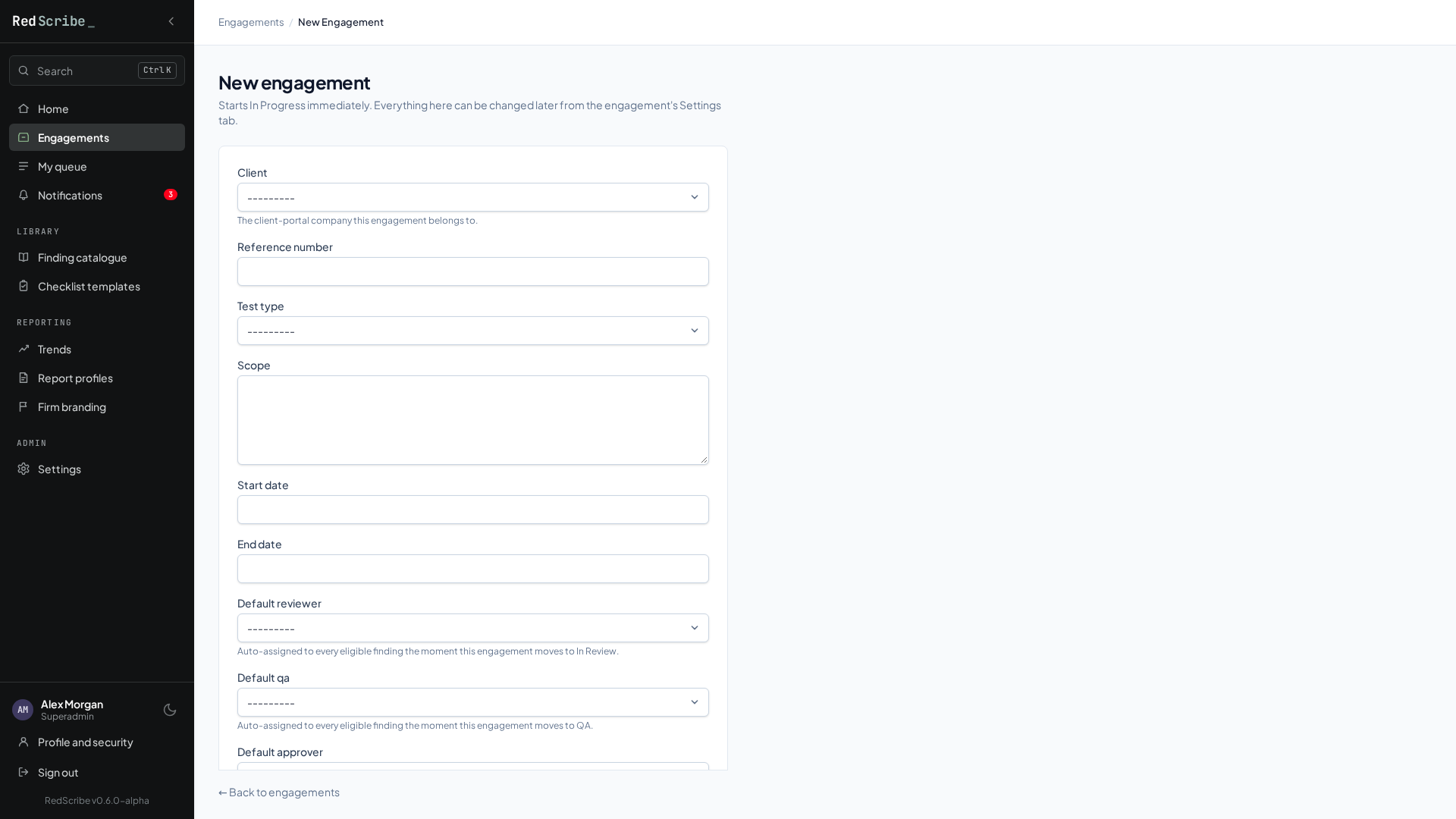
You’ll fill in:
- Client, which must already exist as a client company. You can’t create an engagement against a free-typed client name.
- Reference or project number.
- Scope, as free text.
- Start and end dates.
- Test type: Web Application, Network, or Vulnerability Scan.
- Default reviewer, QA, and approver (optional), assigned automatically as findings move through review.
- Testing checklist: the checklist template to start a run from straight away. It’s pre-set to your default template; choose Don’t start a checklist yet to skip it. See Checklists.
Everything except the client can be changed later on the engagement’s Settings tab.
Status lifecycle
Section titled “Status lifecycle”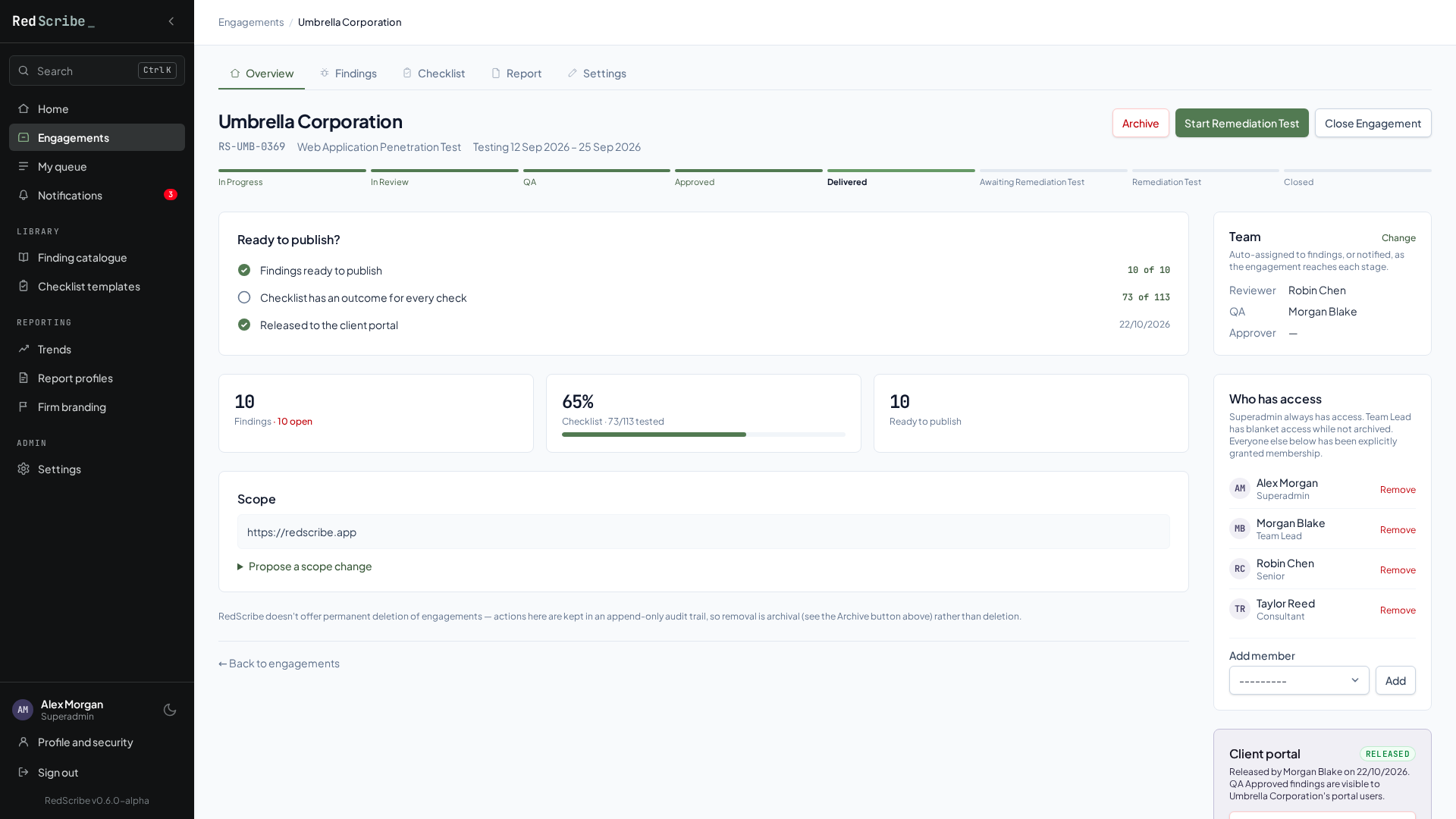
An engagement moves through a fixed sequence of statuses. The overview shows them as a bar with the current stage highlighted, and offers the next status changes as buttons at the top; each asks you to confirm before it changes anything:
In Progress → In Review → QA → Approved → Delivered │ ▼ (if remediation testing is needed) Awaiting Remediation Test → Remediation Test → ClosedReady to publish? on the overview tracks the three things that usually gate delivery: every finding is ready to publish, the checklist has an outcome for every check, and the engagement is released to the client portal.
QA approval is a hard gate, not just a reminder: moving an engagement from QA → Approved or from Approved → Delivered is blocked unless every active finding is QA-approved. The block names how many findings still aren’t there. Archived findings are excluded from the check, so a finding you’ve deliberately set aside won’t hold up delivery.
Every status change is recorded in the engagement’s history: who made it, when, and what it changed from and to. That history is what feeds the document control section of the generated report. Changing status needs the same permission as editing the engagement’s own details.
Membership
Section titled “Membership”Add or remove members under Who has access on the engagement’s overview. The Team card shows the default reviewer, QA, and approver. Membership controls who can see and work on the engagement, unless you hold broader visibility across every engagement. Members are also exactly who the report’s Assessment Team section pulls its bios and qualifications from, so keep membership current if you want the right names on the cover.
Scope changes
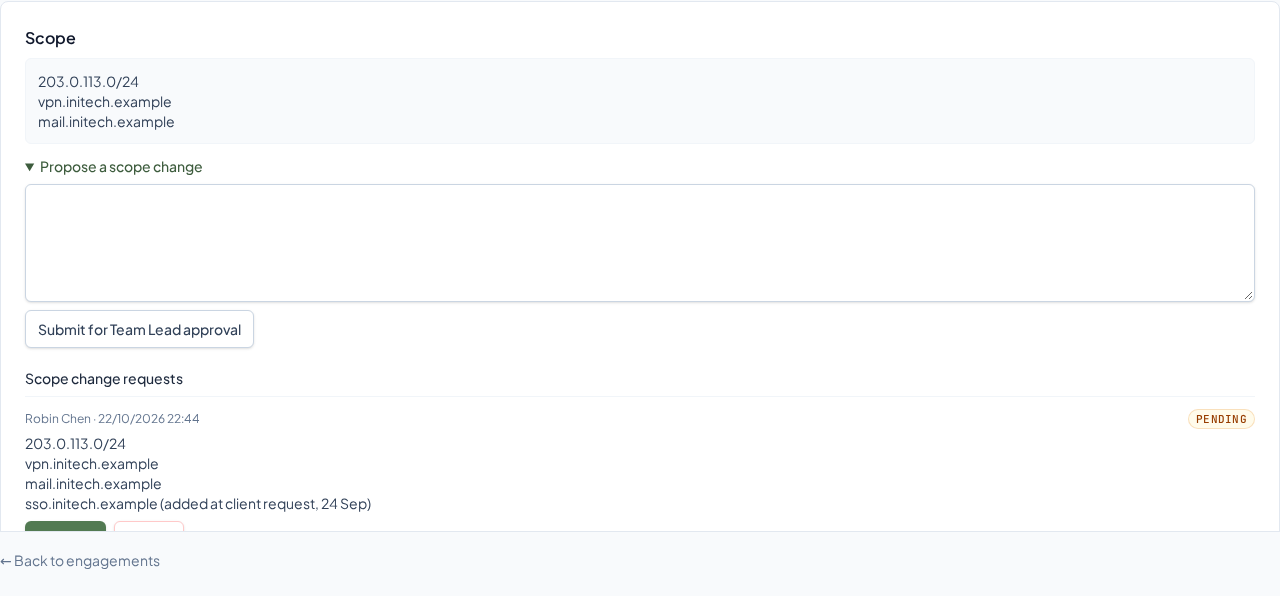
Section titled “Scope changes”Scope changes go through an approval step rather than silently editing the recorded scope in place. That gives you a defensible record of what was actually agreed to mid-engagement.
- On the engagement’s overview, under Scope, open Propose a scope change, enter the new scope, and select Submit for Team Lead approval.
- Someone with the right permission approves or rejects it.
- An approved request updates the engagement’s recorded scope and stays part of its history. A rejected one is kept too, as a record that it was considered and declined.
Archiving and deletion
Section titled “Archiving and deletion”- Archive soft-deletes an engagement. It drops out of the default engagement list, but nothing is actually destroyed. Unarchive reverses it.
- Permanent delete is reserved for the highest level of administrator, and only works on an engagement that’s already archived. It’s the one deliberate exception to RedScribe’s usual archive-instead-of-delete approach, meant for genuine data retention purges rather than everyday cleanup. It removes the engagement from the live database only; a backup taken before the deletion still contains it until that backup is separately pruned or overwritten. See Backup & restore if a retention or disposal requirement means it needs to be gone from every copy.
Releasing to the client portal
Section titled “Releasing to the client portal”Findings never show up in the client portal just because they exist. An engagement has to be explicitly released with Release to client portal, on the Client portal card of its overview, and even then, only findings that have individually cleared QA are shown. Revoke client release reverses it, hiding the engagement from the portal again immediately.