Scanner import
Bulk-creating draft findings from Nmap, Burp Suite, and Nuclei output, including exactly what each parser extracts and how to fix a failed import.
If you’ve already run Nmap, Burp Suite, or Nuclei against a target, you don’t have to retype every result by hand. From an engagement, open Findings then Import scan, and upload the scanner’s raw output file to bulk create draft findings instead of entering them one at a time.
This option only appears if your administrator has turned on scanner import for the instance. If it’s off, you won’t see the screen at all.
The upload form accepts any file up to 75MB, and doesn’t check the file’s extension or content beyond that size limit. That means the format you pick from the dropdown is what actually decides how the file gets parsed. Uploading a Burp XML file while “Nuclei JSON Lines” is selected will fail with a parse error rather than a helpful “wrong tool” message, since RedScribe has no way to know what you meant to upload.
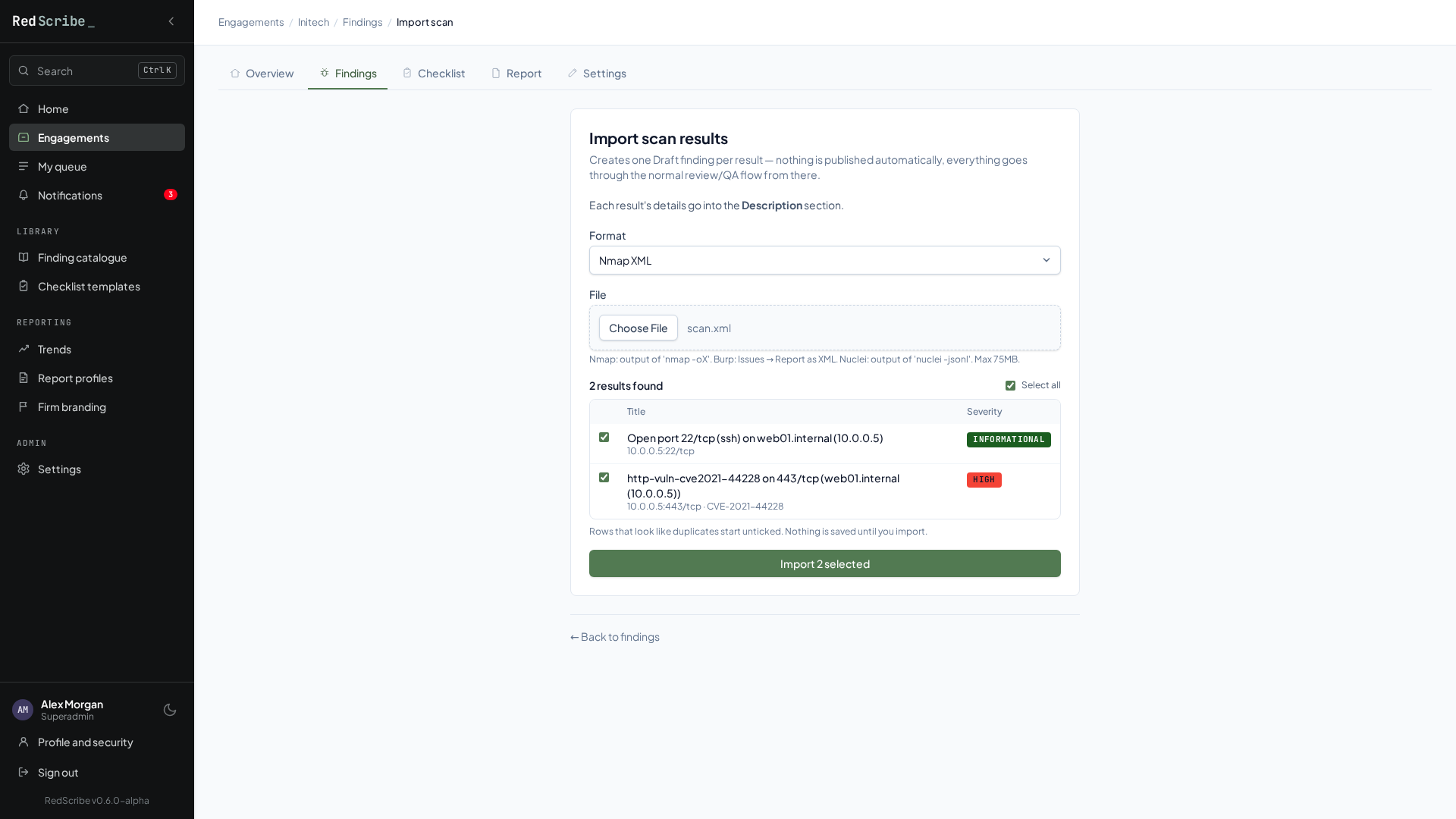
Checking what will be imported
Section titled “Checking what will be imported”As soon as you choose a file, RedScribe reads it and shows what it would create, before anything is saved: one row per result with its title, affected assets, CVE ID, and severity.
- A result whose title and affected assets match a finding already in this engagement is flagged Already in this engagement and starts unticked, so re-importing a scan doesn’t duplicate what you already have.
- Untick anything you don’t want. The button shows how many will be imported, for example Import 3 selected.
- If the file can’t be parsed, the error appears straight away and Import stays disabled.
Changing the format re-reads the file. The file stays in your browser until you import; nothing is kept on the server from the preview. In a browser without JavaScript there’s no preview step, and every result is imported.
What each parser extracts
Section titled “What each parser extracts”All three parsers turn scanner output into a list of draft findings, each with a title, a severity, an affected assets string, technical details, and optionally a CVE ID and classification tags. None of them read a scope or target list from the file: every open finding, port, or issue in it becomes a finding, so trim your scan output first if you only want a subset imported.
Nmap (XML, from nmap -oX)
Section titled “Nmap (XML, from nmap -oX)”The parser walks every host in the file and every port that’s open. For each open port:
- If a script Nmap ran against that port flagged it as vulnerable, a finding is created for each flagged script: High severity, with the script’s raw output as technical detail, and a CVE ID pulled out automatically if one appears in that output.
- If the port is open but nothing flagged it as vulnerable, a finding is still created, just as an Informational “Open port” finding recording the service and version banner Nmap detected. Open ports are never silently dropped just because nothing was flagged.
Every finding from this parser is tagged so you can filter or report on Nmap results specifically later.
If the uploaded file isn’t a valid Nmap XML report, or the host has no open ports anywhere in it, the import is rejected with a clear error rather than silently creating nothing.
Burp Suite (XML, from Issues → Report as XML)
Section titled “Burp Suite (XML, from Issues → Report as XML)”The parser reads every issue in the report. Burp’s severity levels map onto RedScribe’s scale directly (High to High, Medium to Medium, Low to Low), and both “Information” and “False Positive” come in as Informational, a false positive isn’t dropped, it just lands as an informational finding you can archive or delete after review. The finding’s technical details pull together whichever detail, background, and remediation text Burp recorded for that issue, each clearly labeled. All findings from this parser are tagged so you can filter or report on Burp results specifically later.
If the file isn’t a valid Burp Suite XML report, or it parses but contains no issues, the import is rejected with a clear error.
Nuclei (JSON Lines, from nuclei -jsonl)
Section titled “Nuclei (JSON Lines, from nuclei -jsonl)”This format is read one result per line, matching Nuclei’s native output shape. Per result: the title, severity (critical, high, medium, low, or info, with anything else or missing treated as Informational), CVE ID if present, and every tag Nuclei recorded become a classification. Technical details combine the template used, its description if present, and what was matched.
If any single line fails to parse, the whole import is rejected with an error naming the exact line and what went wrong. One malformed line fails the entire file, nothing partial gets imported. If the file has no results in it at all, the import is rejected with a clear error too.
Where the description text lands
Section titled “Where the description text lands”Every parser’s technical details text is written into the one content section your instance has set for Scan import, and the import page names it above the form.
If no active section is set, the page warns you before you import: the details would be dropped, and each finding would be created with its title, severity, affected assets, CVE ID, and tags but an empty body. An administrator can fix this by ticking Scan import on a section in Finding structure.
Every import lands as Draft
Section titled “Every import lands as Draft”Nothing skips the normal review workflow just because a finding came from a scanner. A hundred findings imported at once are still a hundred findings sitting in Draft, waiting to be reviewed and QA approved like any other.
What gets recorded
Section titled “What gets recorded”Each import creates a record regardless of whether the parse found one finding or a hundred: which tool, the filename, the date, who imported it, and how many findings it produced. This is what appears in the report’s scan imports appendix, and it’s the only trace of the import that survives past the upload itself.