Notifications & profile
Every notification RedScribe sends, how the email/in-app split works, and what your profile page controls.
Notifications
Section titled “Notifications”Notifications lists everything addressed to you, newest first. Every notification is tied to either a finding’s review workflow or an engagement’s scope change process, nothing else in the app generates one.
| Trigger | What you see |
|---|---|
| You’re assigned as reviewer on a finding | “You were assigned as reviewer for…” |
| You’re assigned as QA approver on a finding | “You were assigned as QA approver for…” |
| A finding you authored was reviewed | “Your finding … was reviewed by…” |
| A finding you authored was sent back with review changes requested | “Your finding … was sent back with changes requested by…” |
| A finding you reviewed, or authored, was QA approved | “… was QA approved by…” |
| A finding you reviewed, or authored, was sent back from QA with changes requested | “… was sent back from QA with changes requested by…” |
| An engagement you’re the configured approver for moves to QA status | “… has moved to QA, you’re the configured approver for this engagement.” |
| A scope change request you submitted was approved | “Your scope change for … was approved.” |
| A scope change request you submitted was rejected | “Your scope change for … was rejected.” |
Opening a notification marks it read and takes you straight to whatever it’s about, rather than just marking it read in place. Mark all read clears the unread count next to Notifications in the sidebar without navigating anywhere.
Bulk actions still notify individually, in-app
Section titled “Bulk actions still notify individually, in-app”Assigning a reviewer or QA approver across every eligible finding in an engagement at once, or submitting the same review or QA outcome across several findings at once, still creates one individual in-app notification per finding, exactly as if you’d acted on each one separately. What changes is email: instead of one email per finding, you get a single summary email covering the whole batch (“You’ve been assigned as a reviewer on 12 findings,” rather than 12 separate emails). The in-app list is never batched, only the email is.
Notification emails are deliberately generic
Section titled “Notification emails are deliberately generic”Every notification email uses the same generic subject line, and its body is one of a small set of fixed, generic summary lines, “You’ve been assigned as a reviewer on a finding,” “A finding you authored was reviewed,” and so on, or a bulk equivalent with just a count. None of them ever include a client name, finding title, or engagement reference. That’s on purpose: a compromised mailbox shouldn’t expose which clients or findings an account was working on. The in-app version of the same notification stays fully detailed, since viewing it already requires being logged in.
Notification emails are queued after your action completes rather than sent while you wait, so a bulk action doesn’t stall while dozens of emails go out one by one. If email seems to be silently failing, ask your administrator to check the application log.
Your notification preference
Section titled “Your notification preference”Profile and security → Preferences (or Email copies → Change on the Notifications page) is a single all-or-nothing switch, “Also send me an email,” not a per-notification-type toggle. In-app notifications are always on and can’t be turned off. Turning the email switch off stops every notification type (and its bulk equivalent) from emailing you, while still creating the in-app entries as normal. This works the same whether you sign in with a password or through single sign-on.
Profile and security
Section titled “Profile and security”Profile and security, at the bottom of the sidebar, has three parts.
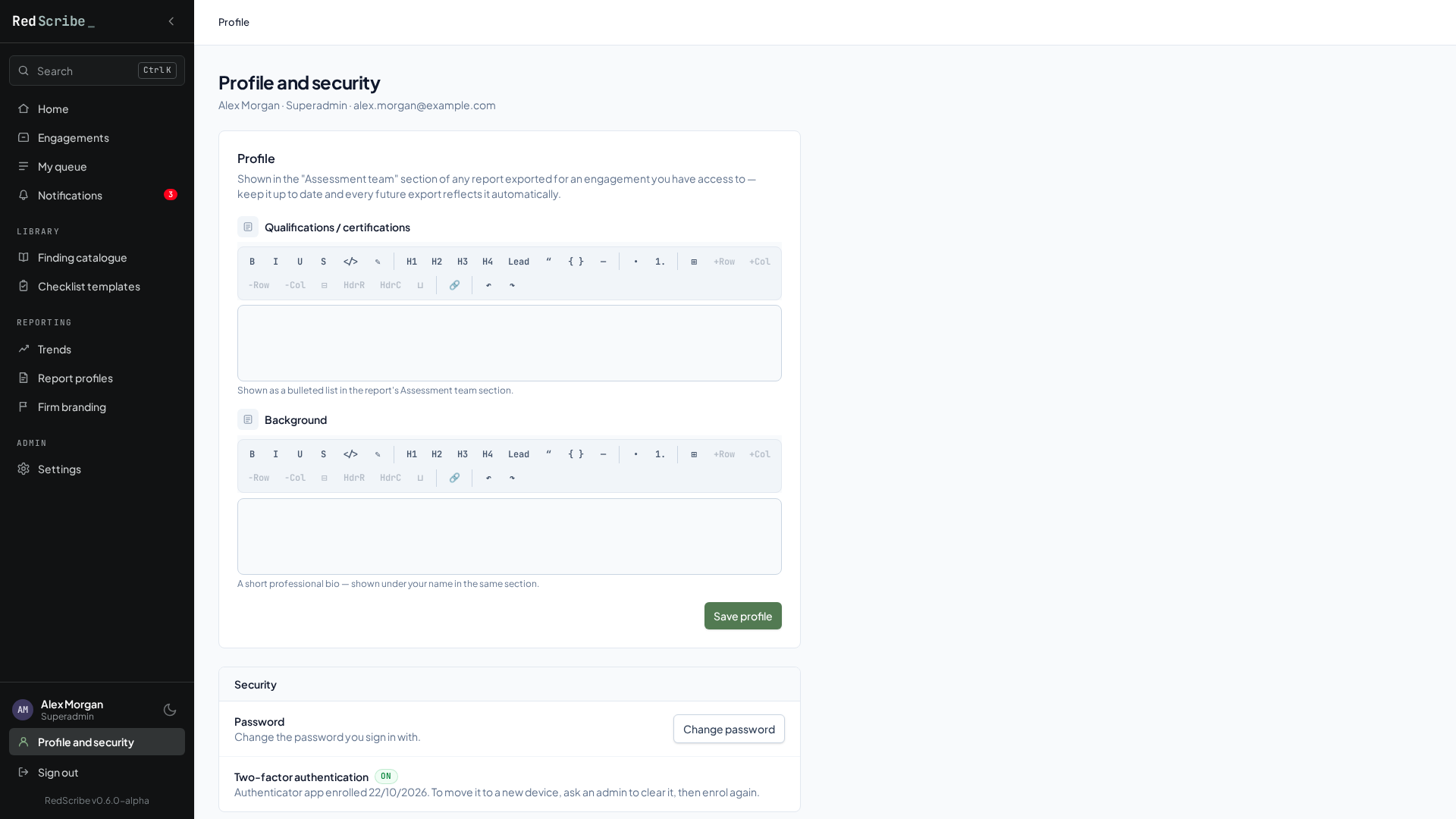
Profile is deliberately narrow. It edits exactly two things:
- Qualifications / certifications, written as a rich text field. Write it as a bulleted list (for example “OSCP” on one line, “OSWE” on the next) and it renders the same way in the report.
- Background, a short professional bio, also rich text.
Both feed directly into the Assessment Team section of a generated report, shown under your name for any engagement you’re a member of. Nothing else about your account, your username, email, display name, or role, can be changed from this page.
Security shows your sign-in method with Change password, and when two-factor authentication was set up. Re-enrollment follows the same process as initial setup; see Logging in & MFA.
Preferences holds the email notification switch described above.