For clients
What a client company user sees in the RedScribe client portal, and how view tracking works.
If your assessment firm uses RedScribe, you may have been given a client portal account. This page explains exactly what you can see and do with it.
Logging in
Section titled “Logging in”Client accounts log in at the same page as firm staff, using your own username and password, or your firm’s single sign-on option if they’ve enabled one. Multi-factor authentication enrollment works the same way it does for staff accounts. See Logging in & MFA.
New client accounts are set up through a single-use, 24-hour emailed link that lets you choose your own password. Nobody at the firm ever sets or sees it.
The dashboard
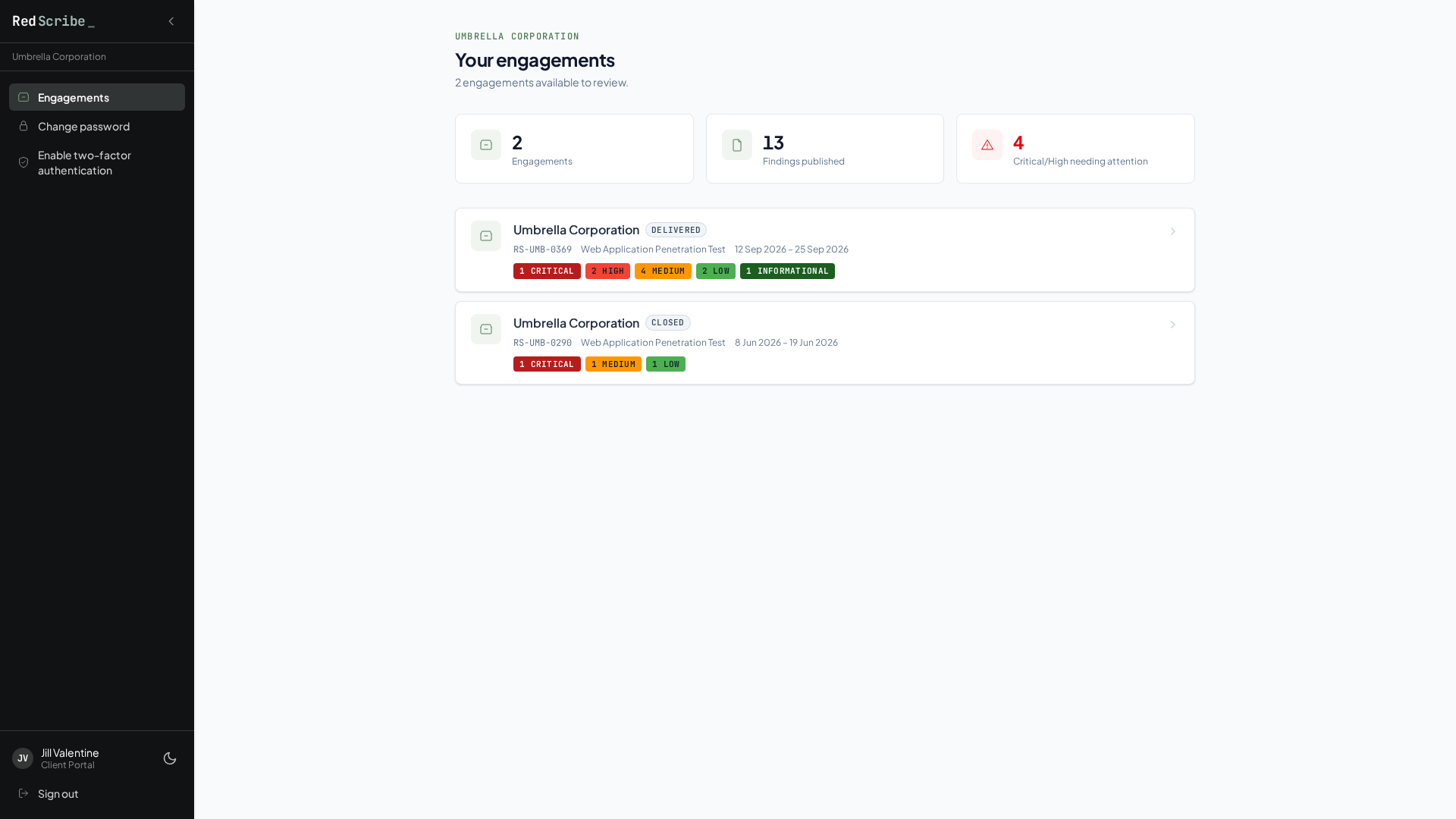
Section titled “The dashboard”Your landing page after login lists every engagement currently visible to you, with three summary tiles above the list: total engagement count, total published findings across all of them, and a count of Critical or High severity findings that still need attention (shown in red once that count is above zero). Each engagement row shows its status, reference number, test type, start and end dates, and a row of severity chips summarizing its published findings. If nothing is visible yet, you’ll simply see a message saying so rather than an error.
What determines whether you can see an engagement at all
Section titled “What determines whether you can see an engagement at all”An engagement only shows up for you if every one of these is true:
- It belongs to your client company.
- Your client company is currently marked active. A deactivated client company hides every one of its engagements from the portal immediately, even though the engagements themselves are untouched.
- The engagement isn’t archived.
- The engagement has been explicitly released to the client portal by staff. Being a client on a project doesn’t mean anything about it is visible the moment work starts. See Engagements for the staff side of releasing and revoking this.
If you try to open an engagement or finding link directly that fails any of these checks, or one that belongs to a different client company entirely, you get a permission error rather than being redirected somewhere else or shown a blank page. There’s no way to discover engagements you’re not supposed to see by guessing links.
What you can see within a released engagement
Section titled “What you can see within a released engagement”Only findings that have reached QA Approved in the review workflow are shown, regardless of the engagement’s own release status. A finding still sitting in Draft, Reviewed, or Changes Requested never appears, even after its engagement has been released. This is enforced directly by what the portal fetches, not by hiding an already-loaded row, so there’s no draft content that can leak through.
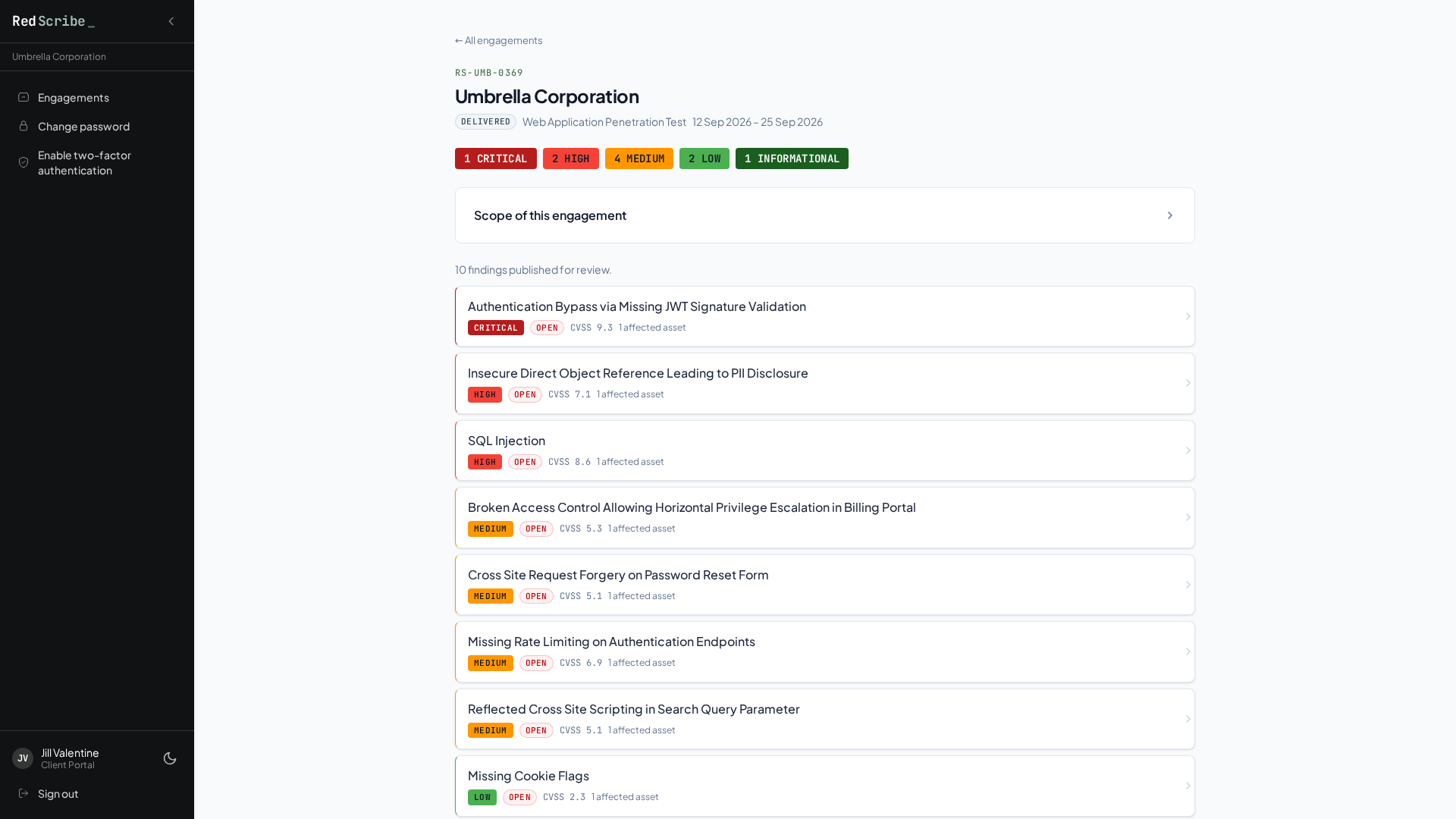
Within a finding you’re allowed to see, only the sections your firm has marked as portal visible are shown, in the order they’ve configured. A section that exists but isn’t portal visible, remediation testing notes, for example, which default to staff-only, is simply absent from the page, not shown empty or redacted.
Nothing else in the portal is actionable besides your own password and MFA settings. There’s no way to edit, comment on, or export findings from the client side.
View tracking
Section titled “View tracking”The moment you open a finding you’re allowed to see, RedScribe records that you viewed it. Repeat views of the same finding update a single “last viewed” timestamp rather than creating a new record every time. The very first view also sets a “first viewed” timestamp that never changes again after that.
On that finding’s own page, staff can see whether and when you looked at it. This is purely informational: it never changes what you can see or do. It’s the only piece of your portal activity that gets surfaced back to staff outside of ordinary audit logging, which separately records every request your account makes, the same as it does for every other account on the instance.