Checklists
Checklist templates, per-engagement runs, the testing posture page, and working through checks one at a time.
RedScribe separates templates, reusable test lists you manage once, from runs, one working copy of a template against a specific engagement.
Templates
Section titled “Templates”Anyone can view the template library (Library → Checklist templates). Creating, editing, or managing items needs a separate permission; see the Permissions reference if you’re setting up roles.
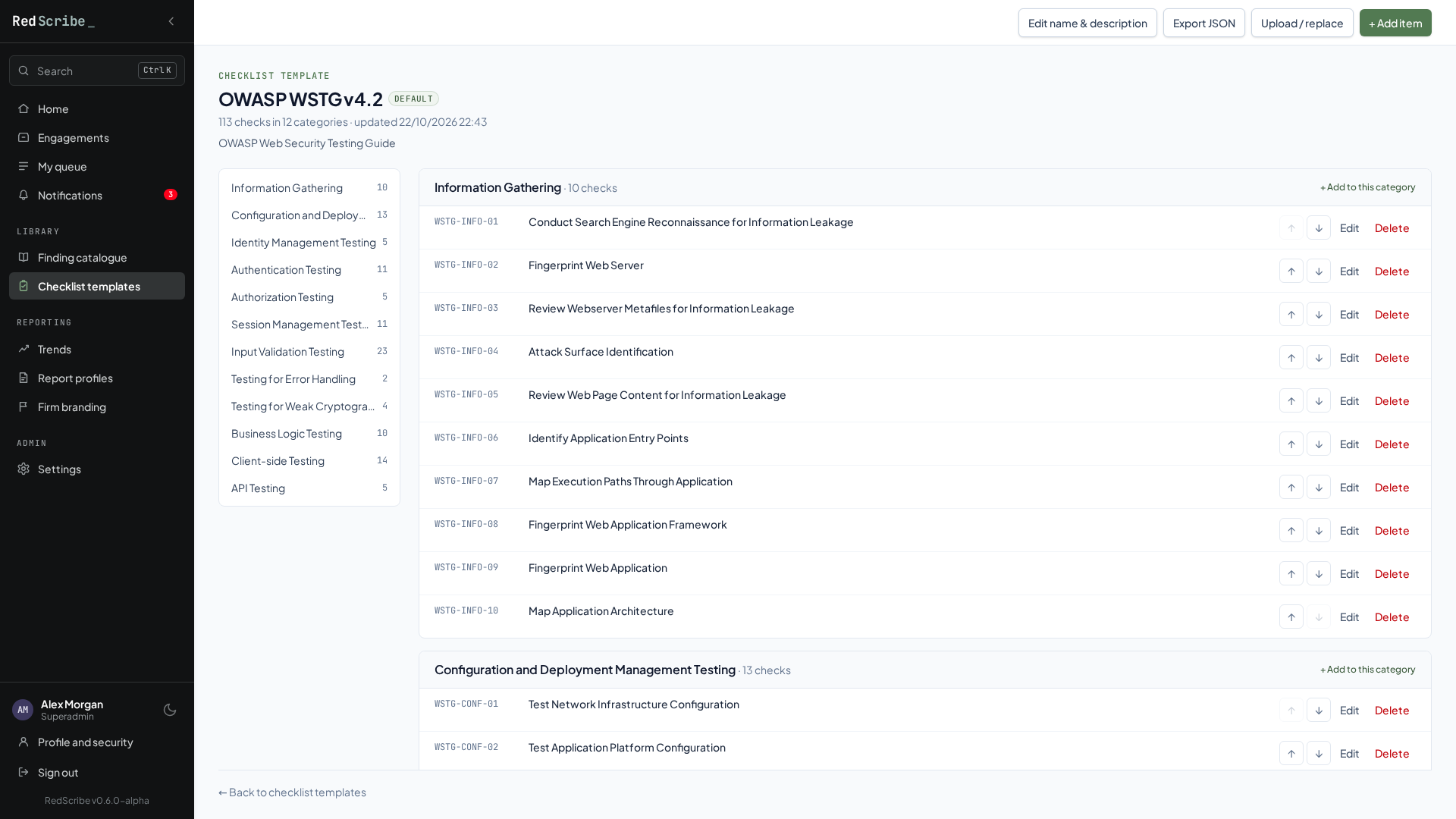
- Create a template from scratch and add items one at a time (category, code, title, reference info). Items can be edited and reordered, and the categories on the left jump to each section.
- Mark a template as the default: it’s pre-selected when someone starts a run, and when a new engagement is created.
- Upload a template through JSON or CSV bulk import instead of entering items by hand.
- Export any template back out to JSON.
Starting a run
Section titled “Starting a run”A run is started in one of two ways:
- When you create the engagement: Testing checklist is pre-set to the default template. Choose Don’t start a checklist yet to skip it.
- From the engagement’s Checklist tab, under Start a checklist run: pick a template and give the run a label, such as the asset it covers.
An engagement can have several independent runs at once, for example OWASP WSTG against a web app alongside the OWASP API Top 10 against its API.
The testing posture page
Section titled “The testing posture page”The engagement’s Checklist tab shows how thoroughly each asset has been tested, where the findings came from, and what’s still open.
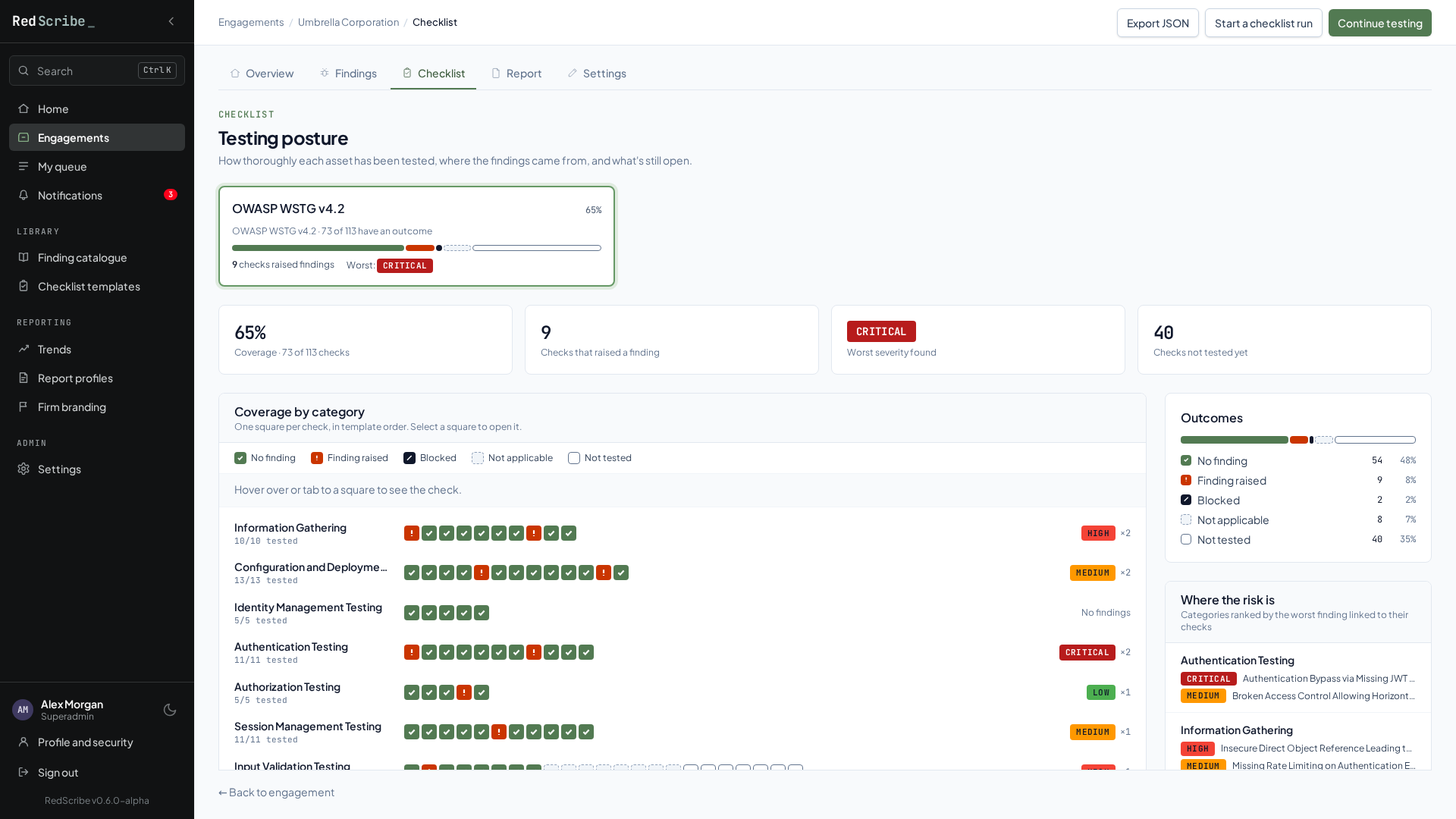
- A card per run, showing its coverage, a bar of outcomes, how many checks raised findings, and the worst severity among them. Select a card to show that run below.
- Coverage by category: one square per check, in template order. The colour and the symbol inside each square give the outcome: a tick for no finding, “!” for a finding raised, a slash for blocked, a dashed outline for not applicable, and an empty outline for not tested. Hover over or tab to a square to see the check and its linked findings, and select it to open the check. The worst severity raised in each category is shown on the right. Show as a table gives the same numbers as a table.
- Outcomes: the run’s totals for each outcome.
- Where the risk is: categories ranked by the worst finding linked to their checks.
- Gaps to close: categories with untested checks, blocked checks with their reasons, the first untested check in each category (Up next), and how many of the engagement’s findings aren’t linked to any check.
Each check’s outcome is one of:
| Outcome | Meaning |
|---|---|
| Not Tested | Default, not yet worked |
| Tested — No Finding | Tested, nothing to report |
| Tested — Finding Raised | Tested, and linked to one or more findings |
| Not Applicable | Out of scope for this engagement |
| Blocked | Couldn’t be tested. Needs a reason, which the report lists as a testing limitation |
Adding a one-off check
Section titled “Adding a one-off check”+ Add a custom check adds a check to this run only, with a category (an existing one or a new one), an optional code, and a title. The template isn’t changed.
Marking a whole category at once
Section titled “Marking a whole category at once”Under List every check, each category with untested checks offers Mark N untested as with Not Applicable or Tested — No Finding. Only untested checks change; anything that already has an outcome is left alone. Blocked can’t be set in bulk, because each blocked check needs its own reason.
Working a check
Section titled “Working a check”Select a check, or Continue testing to open the next untested one.
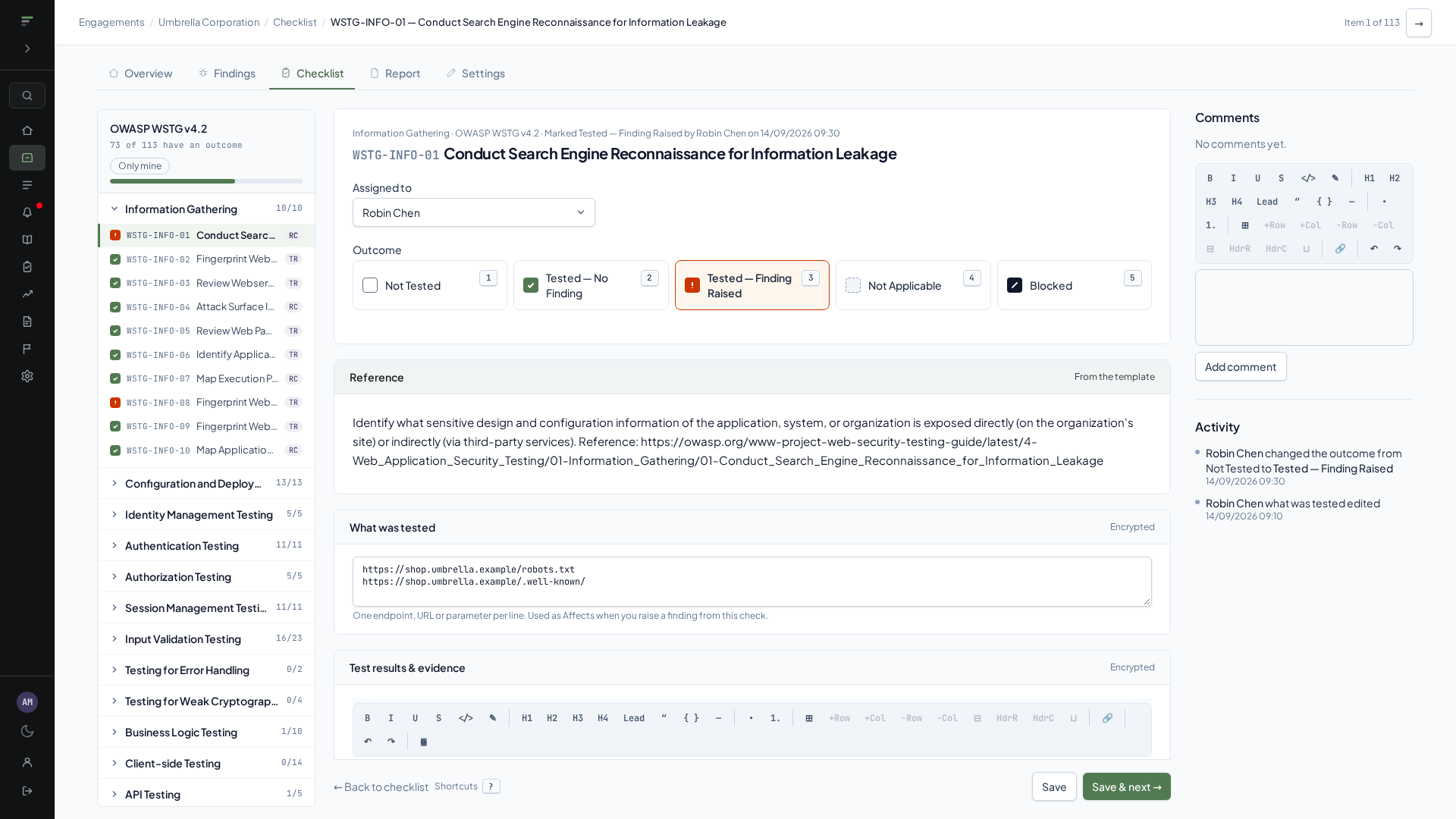
- Find your place. The left-hand list shows every check in the run, grouped by category, with each one’s outcome and assignee. Only mine narrows it to checks assigned to you. Arrows at the top right, and Save & next, move through the run in order.
- Assign it to someone with access to the engagement, if your team splits the work.
- Read the reference. The Reference panel shows the guidance copied from the template when the run started. It’s read-only here; to change the guidance, edit the item on the template (Library → Checklist templates), which affects runs started afterwards.
- Choose the outcome. If you choose Blocked, say why; the reason is required, encrypted, and listed in the report’s coverage section.
- Record what was tested: one endpoint, URL, or parameter per line. It’s encrypted, and it becomes the finding’s affected assets if you raise a finding from this check.
- Record test results and evidence. Like other sensitive engagement content, these are encrypted at rest; see Encryption model.
- Link findings this check raised, or use + Raise from this check to write a new one (see below).
- Leave a comment if useful context doesn’t belong in the result itself.
The line under the title shows who set the current outcome and when. Activity on the right lists every change to the check: outcome, assignee, evidence and scope edits, linked findings, and comments. Activity says that encrypted text changed, never what it says. Repeated edits by the same person within ten minutes show as one entry.
Saving and other people’s changes
Section titled “Saving and other people’s changes”Changes save automatically a moment after you stop typing, and the bar at the bottom shows Saved with the time. Save and Save & next still work as usual.
If someone else saves the same check after you opened it, RedScribe doesn’t overwrite their work. Automatic saving stops, and when you press Save the page shows who saved it and when, with your changes still in the form. Choose Keep my changes to replace their version, or Discard mine and reload to see theirs.
Raising a finding from a check
Section titled “Raising a finding from a check”+ Raise from this check opens a new finding with the check’s title, and its what was tested lines copied into the finding’s affected assets. Review both before saving. Once you save the finding, it’s linked to the check, and a check that hadn’t been tested yet is marked Tested — Finding Raised.
Keyboard shortcuts
Section titled “Keyboard shortcuts”| Key | Does |
|---|---|
| 1–5 | Choose an outcome (in the order shown on the page) |
| J / K | Next / previous check, without saving |
| Ctrl Enter (⌘ Enter on a Mac) | Save and go to the next check |
| ? | Show every shortcut on the page |
Single keys are ignored while you’re typing in a field, so typing “j” in a text box just types it.
Exporting a run
Section titled “Exporting a run”Export JSON produces a JSON export of the engagement’s full testing data: objectives, outcomes, what was tested, blocked reasons, who tested each check and when, assignees, results, linked findings, and comments. It’s independent of the report.